The short version
Open Settings, then Import data. Only owners and managers can see it, and it is included on every plan. You upload a CSV file, check what Gearboxly would do with it, and only then confirm.
- 1Choose where you are coming from and what you are bringing over.
- 2Upload your CSV file (up to 25 MB).
- 3Match the columns in your file to ours.
- 4Check the dry run. Nothing has been written yet.
- 5Confirm and import.
- 6Read the report. You can undo the import from the same screen.
1. Choose a source and a data type
Pick your old system: Tekmetric, Shopmonkey, Shop-Ware, AutoLeap, Protractor, Mitchell 1, or Other CSV. Then pick one of four things to bring over: Customers, Vehicles, Repair order history or Inventory. You do one file at a time.
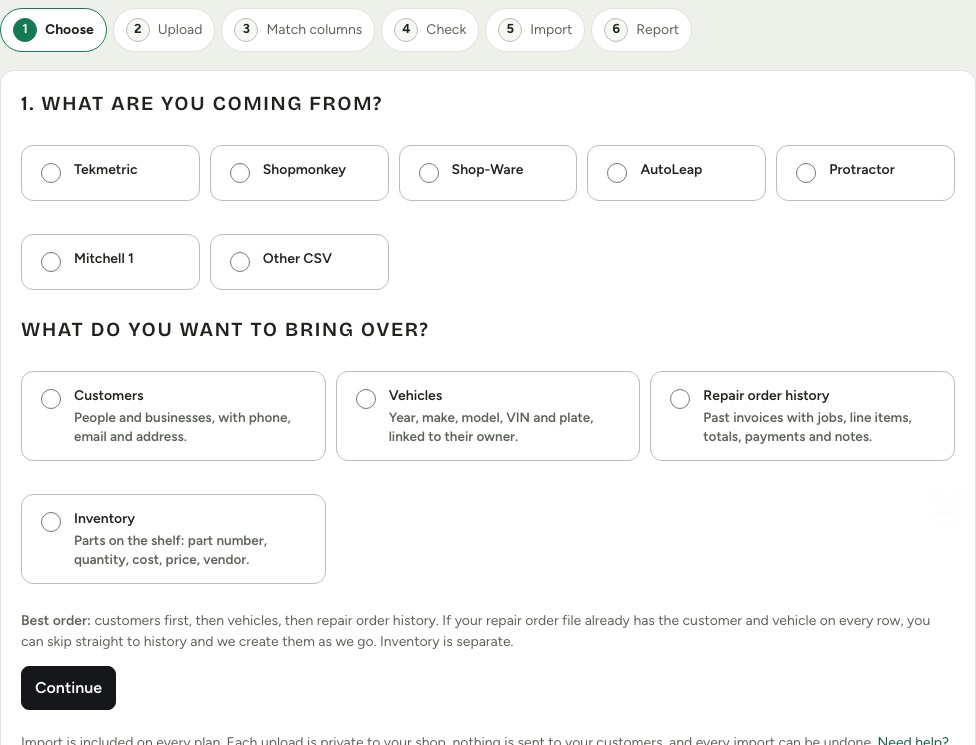
The source changes three things only: the export advice you see on the next screen, the first guesses for column matching, and the prefix on imported repair order numbers. Any CSV with a header row works with any source.
2. Upload your file
The next screen says whether the source's own help describes this export, and how to get it. Where it does not, it says so and suggests asking the vendor's support. You can still bring the data in with any CSV that has a header row.
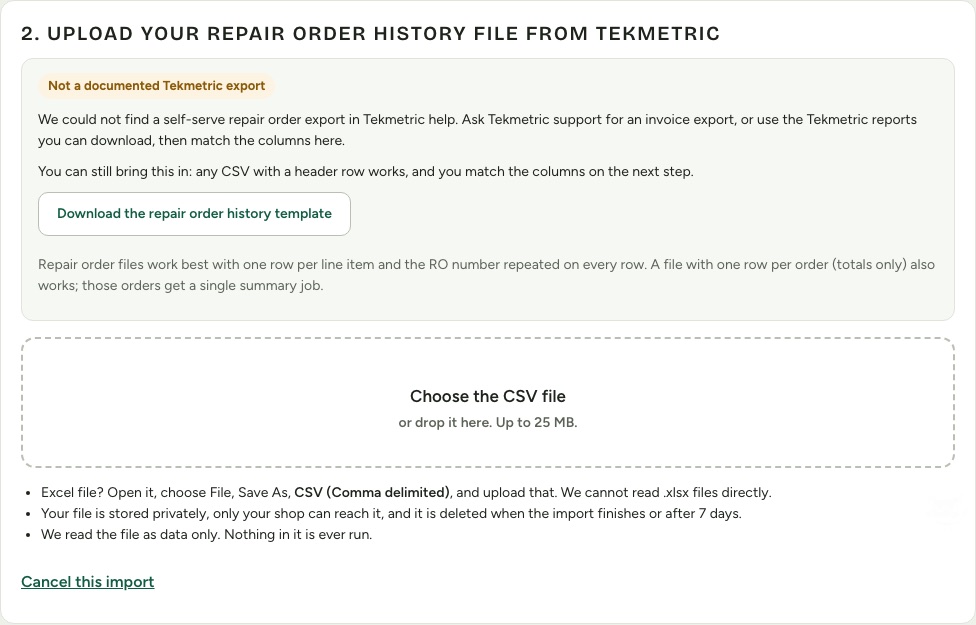
- CSV only. UTF-8, UTF-16 and Windows-1252 files all work, and so do comma, semicolon, tab and pipe separators.
- An Excel file (.xlsx or .xls) is refused with an instruction to open it and choose File, Save As, CSV (Comma delimited).
- The limit is 25 MB per file. Split a large export by year.
- The upload is private to your shop. It is deleted when the import finishes or after 7 days, and it is read as data only.
- A template for each type is one click away: Download the template. See Import CSV template and columns.
For repair order history, one row per line item with the RO number repeated on every row works best. A file with one row per order (totals only) also works; each of those orders gets a single summary job.
3. Match the columns
Gearboxly reads the header row and guesses which of your columns is which. For each field we need, you see the column we picked and the first row of your file in that column. Change anything that is wrong, and set the rest to Do not import. Dates are read as US month/day/year (a first number over 12 is read as the day). Money can have $, commas and (parentheses) for negatives.
To run, each type needs a minimum:
- Customers
- At least one name column: First name, Last name, Full name or Company.
- Vehicles
- At least a VIN, or make and model (or plate), and one column that says who owns the vehicle: Customer ID, Customer phone, Customer email or Customer name.
- Repair order history
- An RO number (or invoice number), at least one date (opened, closed or paid), and a Total or line totals so the money comes across.
- Inventory
- A part number or a description.
Two options appear for some types. Both are off by default.
- Also bring in orders that were still open
- Repair order history only. Open orders cannot become live, editable orders. With this ticked they come in as read-only history, shown as unpaid invoices. Most shops should leave it off and finish open jobs in the old system, or re-create them as new orders.
- Import vehicles that have no matching customer
- Vehicles only. Without it, a vehicle whose owner cannot be found is listed in the problem file instead. With it, the vehicle comes in without an owner.
When you are happy, choose Check my file. Nothing is imported yet.
4. Read the dry run
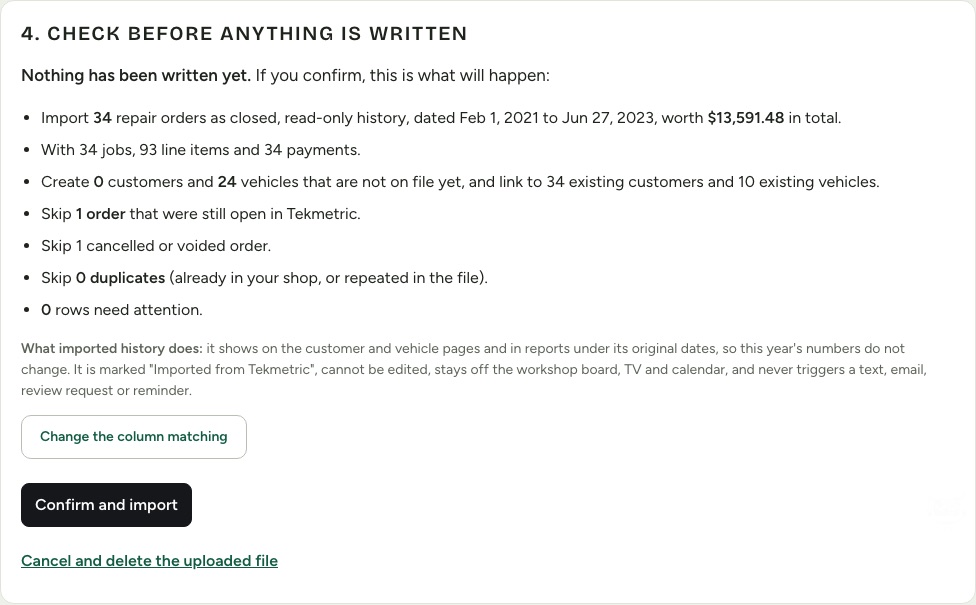
The dry run counts what would happen, in plain sentences, and writes nothing. For repair orders it reads like this:
- Create
- How many customers, vehicles or parts are new, and for repair orders how many orders would come in, with the date range and total value.
- Link
- How many existing customers and vehicles the file would attach to, instead of creating copies.
- Skip
- Duplicates (already in your shop, or repeated in the file), rows already imported by an earlier upload, open orders, and cancelled or voided orders.
- Needs attention
- Rows with a problem. A row that cannot be used is skipped. A row that can be used but has something odd, like a phone number that cannot be read, comes in with a note.
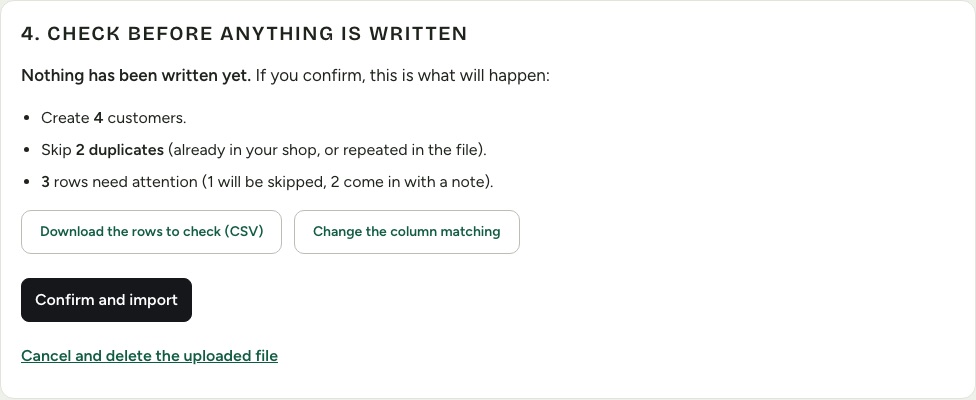
Choose Download the rows to check to get a CSV of every row that needs attention, with the reason. Fix the file and upload it again, or accept the notes. Choose Change the column matching to go back a step. You can run the check as many times as you like.
Orders with no usable date, a future date, no RO number, an RO number that is too long, or no money are rejected and listed. The RO number and its source prefix can be 16 characters at most.
5. Confirm and import
Choose Confirm and import. The import runs in pieces with a progress bar. Keep the page open if you can. If you close it, come back to Settings, then Import data, and it carries on from where it stopped.
If the dry run found nothing new to import, the button is off and the screen says so.
6. Read the report
When it finishes you get a report of what was created, what was linked, what was skipped and why, the total value of imported orders, and the dates the history covers. You can download the rows that were skipped.
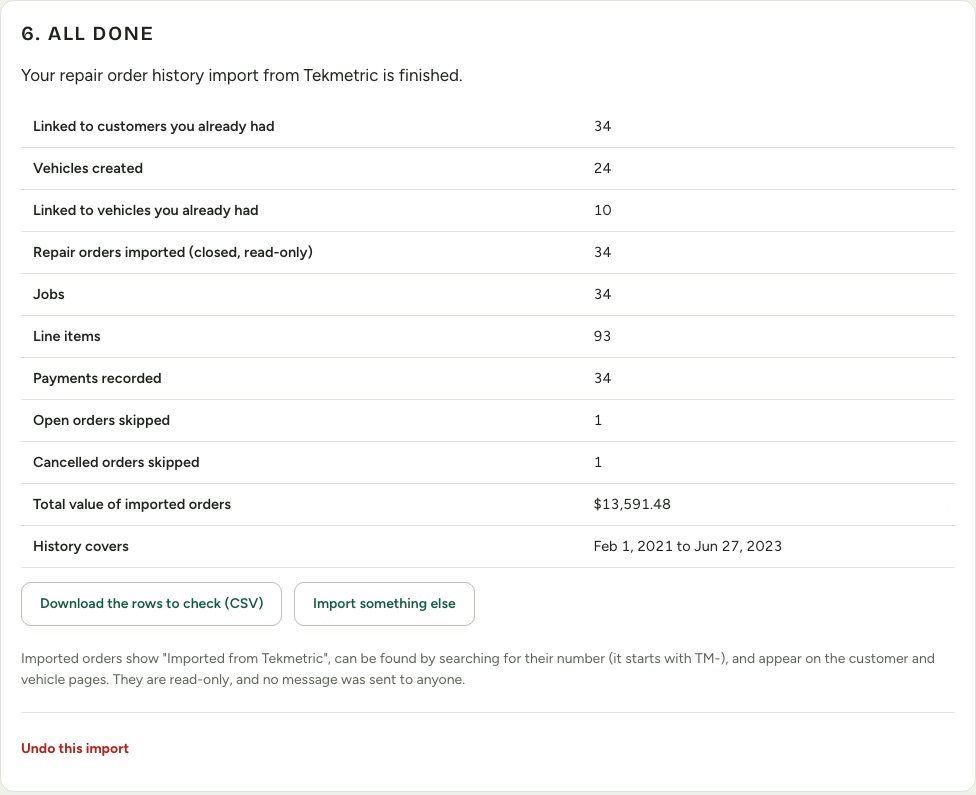
Under the report, Undo this import is always there. See Undo an import. Every import also stays listed under Past imports on the same screen.
How duplicates are handled
Gearboxly never overwrites a record you already have. It looks for a match, and if it finds one it links to it or skips the row.
- Customers
- Matched by ID, phone and email. Name alone is used only when the row has no phone or email.
- Vehicles
- Matched by VIN first, then by plate, or year, make and model, for the same owner.
- Inventory
- Matched by part number.
- Repair orders
- Matched by RO number plus the source prefix. An order whose number already exists is skipped and listed.
Uploading the same file again does not import anything twice. Gearboxly remembers each row, per source.
After you import
- Imported repair orders are marked "Imported from <your old system>", are read-only, and show on customer and vehicle history. See Imported repair orders: what is different.
- Nothing was sent to your customers, and nothing will be sent because of the import.
- Open a customer you know and check their vehicles and history against your old system.
- Not imported from any source: inspections and photos, appointments, labor guides and canned jobs, text message history, declined work, loyalty balances, QuickBooks links and staff accounts.