How Gearboxly staff clock-in and clock-out stay secure
Updated
You switch on up to three checks, the server decides every punch, and anything outside your rules waits for a manager. Nothing is checked until you turn it on.
- When
- Network
- Location
Pick the checks your shop needs
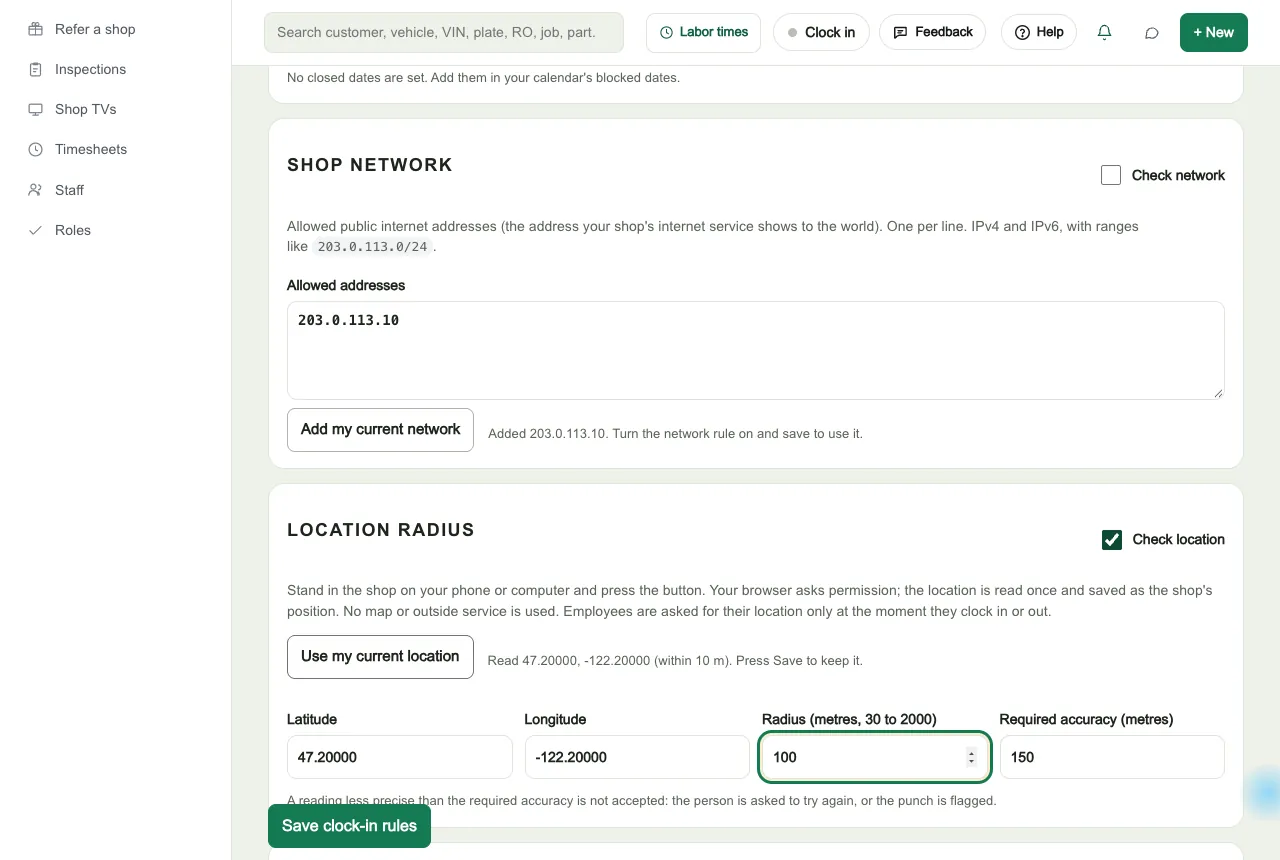
The owner turns each check on or off under Settings, Clock-in rules. They are independent. All of them run on the server when the punch arrives, and the browser only supplies the tap and a location reading.
When
Pick the open days, with an earliest and latest time for each weekday, worked out in your shop’s timezone. A grace window of 0 to 120 minutes (15 by default) widens both ends. If the latest time is not after the earliest, the window runs past midnight, so night shifts work. You can also count dates blocked on your shop calendar as closed. The same window applies to clocking in and clocking out.
Where on the network
List the public internet addresses your shop uses, IPv4 and IPv6, as single addresses or ranges (up to 30 entries). Press Add my current network while you are at the shop and it saves the address the server sees for you. The server reads the address from Gearboxly’s own web server and ignores any header a visitor could set.
Where on the map
Save the shop’s position by pressing Use my current location while you are there. Choose a radius, 100 m by default, from 30 to 2000 m. A reading less precise than your required accuracy (150 m by default, 20 to 500 m) is not accepted, and it is a gate, not a bonus: the accuracy is not subtracted from the distance. No map and no outside geocoding service is used.
Match any, or require both
With match any, being on the shop network or inside the radius is enough. With require both, a person needs both. If only one of network or location is switched on, that one decides. Allowed hours always apply on top. If you use match any and the network rule is also on, a person already on the shop network is not asked for their location at all.
Exemptions and managers anywhere
Exempt whole roles or named people: they skip every check, including hours, and are never asked for a location. Or turn on Managers may punch from anywhere, which skips the network and location checks for owners and managers. Their allowed hours still apply.
When the browser asks for a location
- For the clock-in rules check, only when someone presses Clock in or Clock out, and only when a location rule applies to them.
- The rules check never asks on page load, in the background, for starting or ending a break, or repeatedly. The Clock-in map, described below, is separate.
- While the reading is pending, the screen says the location is used only to confirm the person is at the shop, right now.
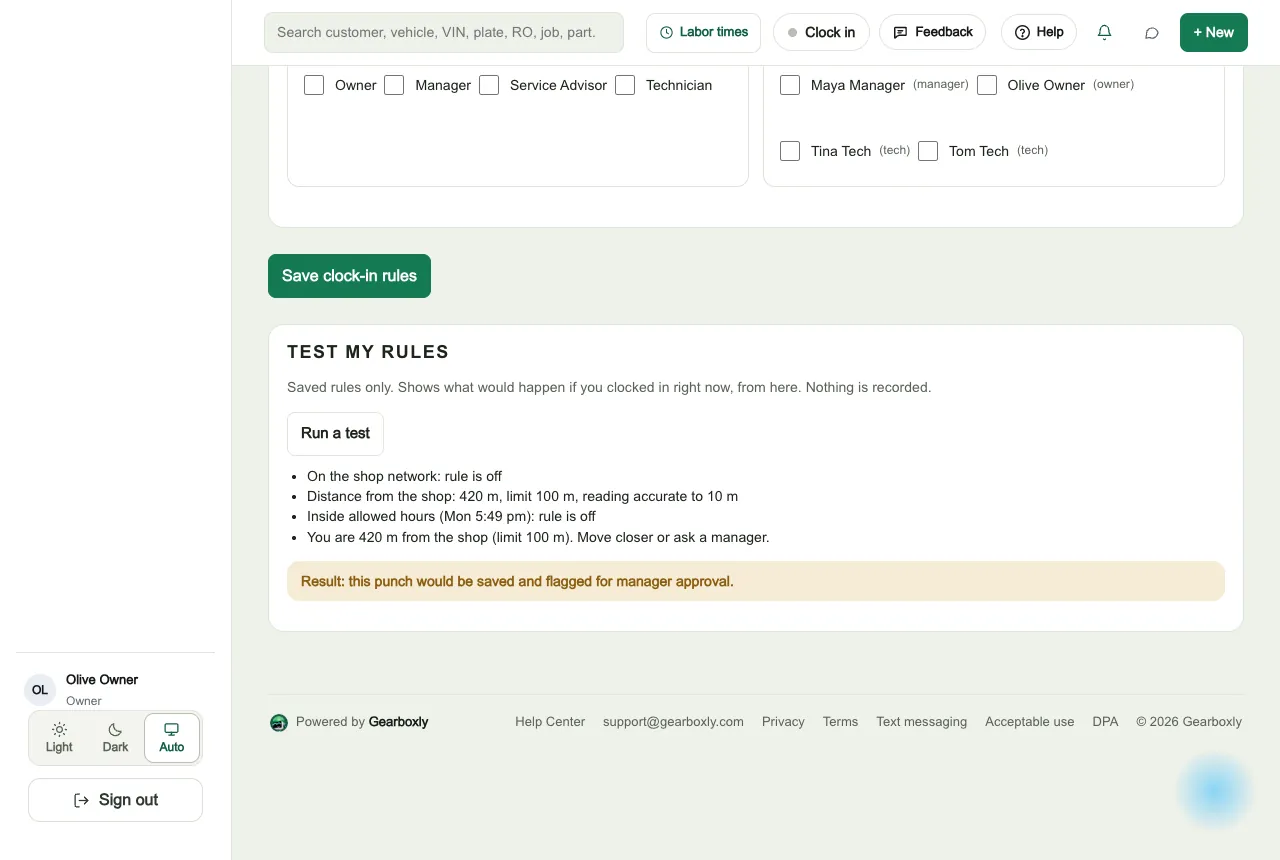
The owner can press Run a test on the settings page to see the network result, the distance and the hours result from where they stand. A test stores nothing.
Flag it for approval, or block it
When a punch falls outside the rules, the owner chooses what happens. Flag for approval is the default.
Flag for approval
DefaultThe tap
Someone clocks in outside the allowed hours.
Saved with the real time
The punch keeps the time of the tap, and the shift is marked pending.
Left out of pay
A shift with a flagged punch is left out of the paid total until a manager approves it.
A manager decides
Approved, it counts. Rejected, it stays on record and never counts.
Block
RefusedThe tap
Someone clocks in from outside the radius.
Refused with a message
The person sees a message saying why, and how to fix it.
Not saved as time
No shift is recorded.
On the record
The attempt is listed under Blocked attempts and written to the Activity log with the reasons, the distance if known, and the address.
One queue for everything that needs a look
Punches to review
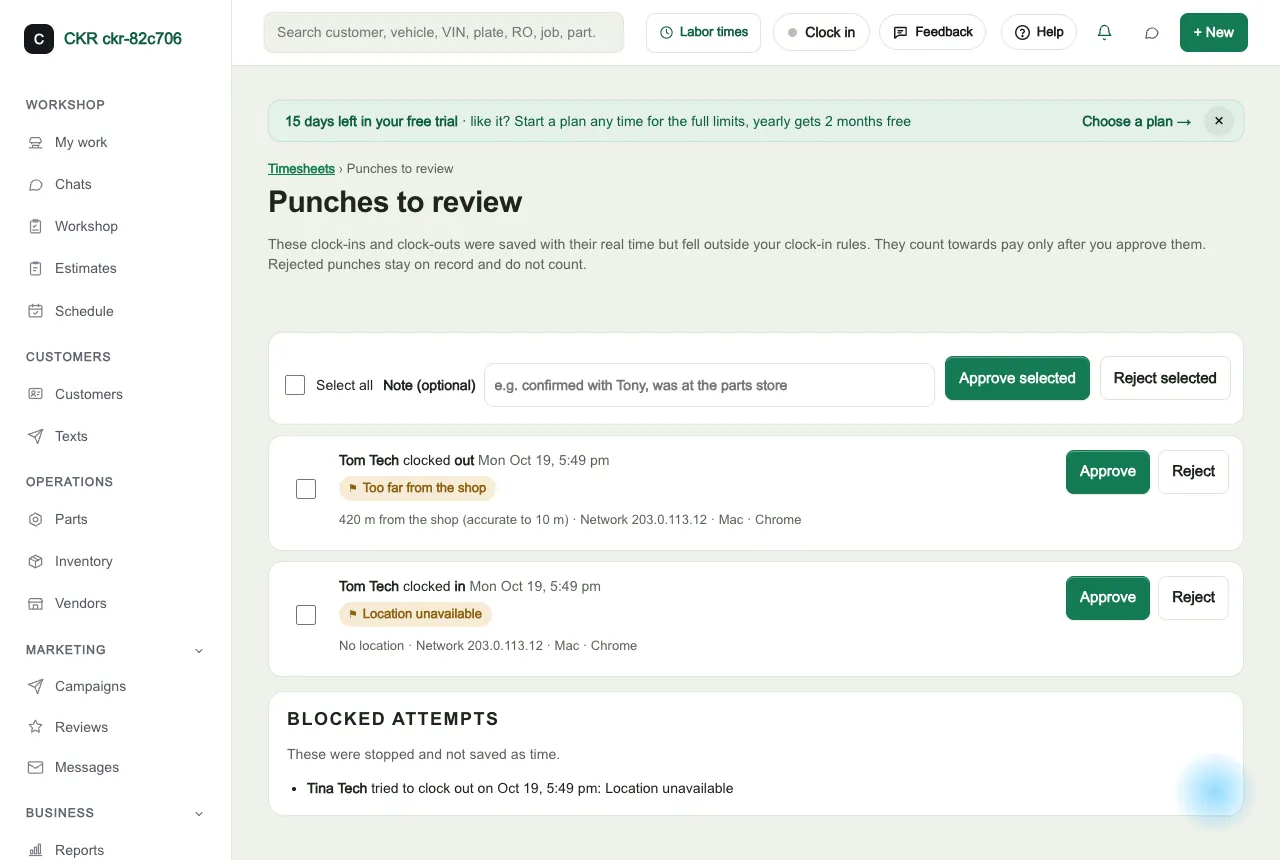
Owners and managers see each flagged punch with its reason, the distance from the shop, the accuracy, the network address and the device. Approve or reject singly, or select several and use Approve selected or Reject selected, with an optional note.
Your own time
Nobody except the owner can approve their own flagged punch or change their own time.
Manual entries
Adding, correcting or deleting a shift needs a written reason. Each one is recorded in the Activity log with who did it, when, and the old and new values.
Nobody punches for you
The person is the signed-in account. The only way to add or change someone else’s time is a manager’s manual timesheet entry.
Held until decided
A shift with a punch waiting for review cannot be edited or deleted until the punch is decided.
A count only
The number of punches waiting is shown on the Timesheets link, in notifications and on the clock menu. It is a count only.
Every approval, rejection, rules change and manual timesheet change is written to the Activity log. Managers see the distance from the shop and the accuracy in the review queue, and the Clock-in map shows where people are while they are clocked in. No page lists raw coordinates.
No surprises for your team
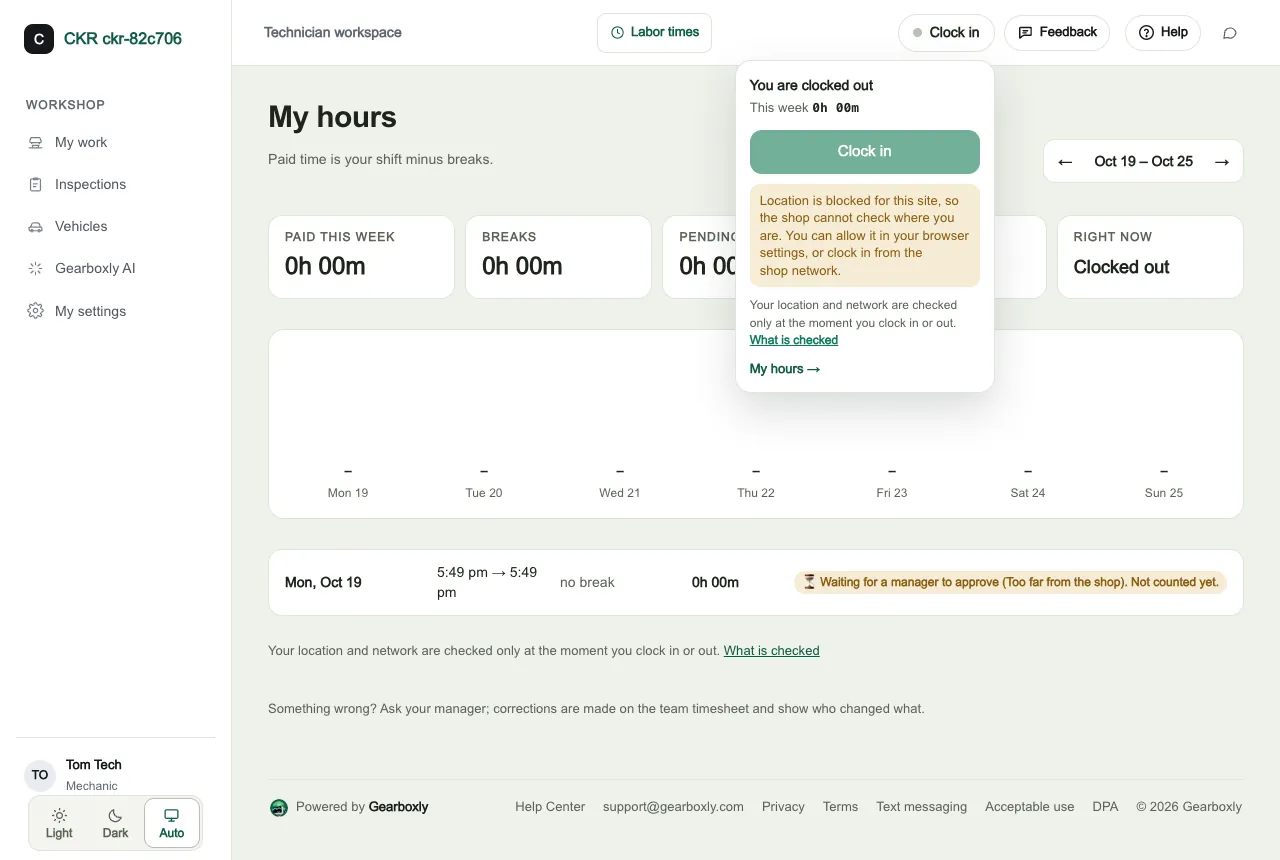
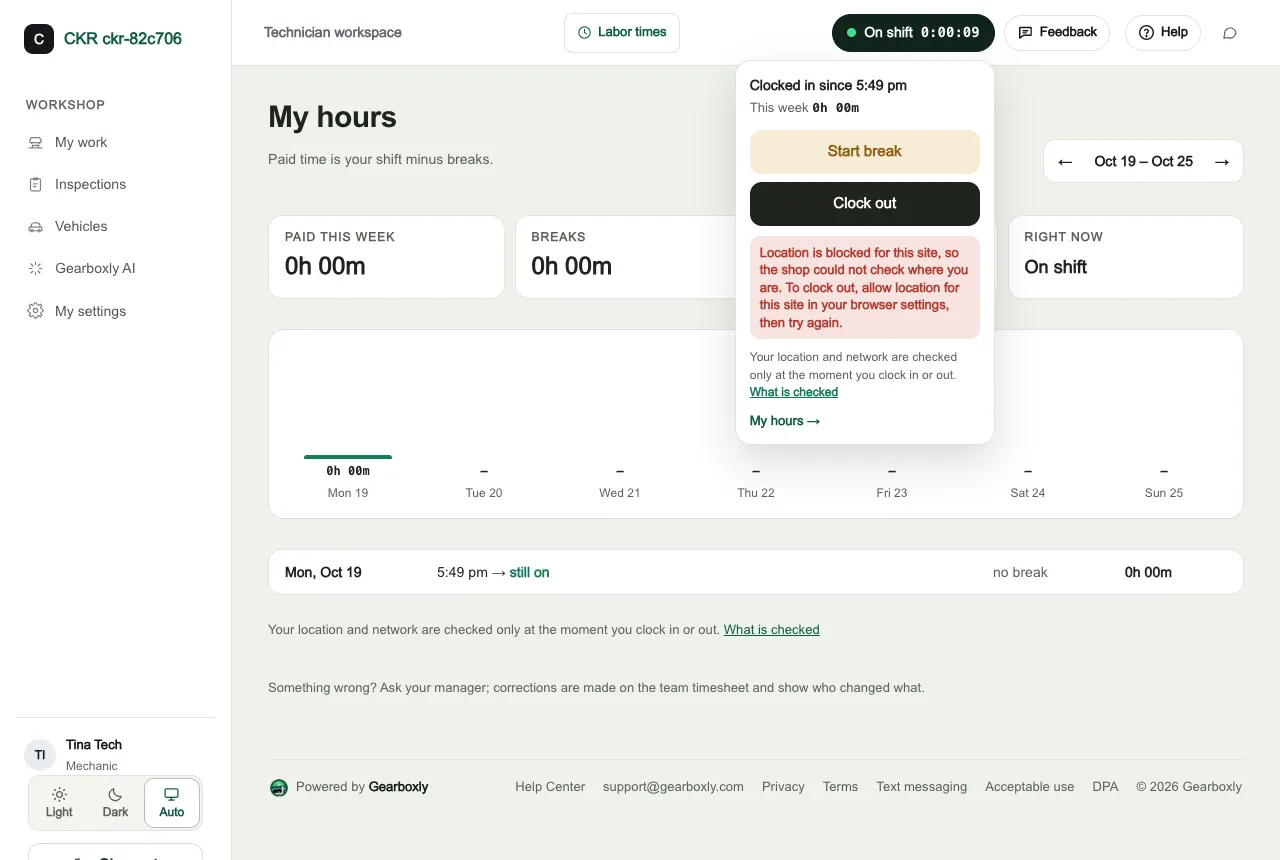
Everyone signed in can read a plain-language page in the app that says what is checked: the clock menu links to it as What is checked. Employees also see their own hours, which of their punches are waiting for approval and why, and a one-line reminder that their location and network are checked only at the moment they clock in or out. A technician or front desk person cannot open the rules page or the review queue.
The Clock-in map
Owners and managers get a separate page, Clock-in map, that shows where people are while they are clocked in. It is a work-time record, not tracking outside a shift, and it is included on every plan.
Live dots and routes
A dot for each person who is clocked in, with their name, when they clocked in and how many minutes ago their phone last reported. A dot turns grey after 5 minutes without an update. Pick a day to see the route of a shift, with clock-in and clock-out markers, flagged punches and your shop radius, on OpenStreetMap.
Only while clocked in, with the app open
Location is shared only while someone is clocked in and has Gearboxly open on their phone. It stops at clock-out and on breaks. Gearboxly is a web app, so reporting pauses when the phone is locked or the app is closed.
Employees can say no
Employees accept the location terms on their invite link or at their next clock-in. They can decline sharing and still clock in.
Owners and managers only
No one else can see the map. Routes are kept 30 days, then deleted.
The record of each punch
Only when at least one rule is on, each clock-in and clock-out that the server evaluates is saved as a punch record. With every rule off, nothing extra is written. The data lives in your shop’s own database, separate from other shops, and this feature sends no location or network data to any outside service.
Saved with each punch
- Who and when
- The person, the shift, in or out, and the real time of the tap from the server clock.
- Verdict and reasons
- Ok, flagged or blocked, and any of: outside hours, outside network, outside radius, no location, low accuracy, suspicious.
- Network
- The public address the server saw, and whether it was on your list.
- Location
- The reading the browser reported, rounded to 4 decimal places (about 11 metres), kept only if a location rule applies to that person and a usable reading arrived.
- Accuracy and distance
- The reported accuracy and the computed distance from the shop, in whole metres.
- Device label
- A short label such as iPhone, Safari; the full browser string is not stored.
- Decision
- Who approved or rejected a flagged punch, when, and the optional note.
How long, and what is left out
180 days
The location reading saved with a clock-in rules punch check is cleared after 180 days. The time, verdict, reasons, network address, device label and approval record stay as the audit trail, and shift hours are not touched.
30 days
The shift route on the Clock-in map is a separate record. It is kept 30 days, then deleted.
Not collected
If the location rule is off for your shop, or the person is exempt, any coordinates sent to the server are discarded and never stored.
Payroll export
The timesheet CSV carries the review status and the reasons, and no coordinates.
What employees are told, in plain English: Employee clock-in terms. Employees see a short notice in the app with a link to the full terms, and they are asked again whenever the terms change in a way that matters. The terms describe what the software does and are not legal advice; laws on employee monitoring differ by place, so check what applies to your shop.
What no browser-based check can prevent
Checks that run in a web browser can be fooled, and we would rather say so. This is a way to notice and review, not a guarantee.
What can fool it
- A phone running a location-spoofing app can report a position at the shop. Browsers allow this by design.
- A VPN or remote-access tool can make a connection look like it comes from the shop network.
- Someone close to the shop, in the car park or on shop Wi-Fi they were given, passes the network and radius checks without being at their post.
- Someone who knows a colleague's sign-in could punch as them from the shop. Sign-in security, including two-step verification, is a separate protection.
- Indoors, GPS can be imprecise. The accuracy threshold avoids false alarms, and it also means a very imprecise reading is not accepted as proof.
- A shop whose internet address changes often needs the network list kept up to date, or should rely on location.
What Gearboxly does about it
- Every decision is made on the server. The browser cannot send a verdict, a time or a person.
- Readings less precise than your required accuracy are not accepted.
- Suspicious patterns are held for review: a punch more than 2 km from the same person's previous located punch within 30 minutes at over 150 km/h, or a reading with accuracy of exactly zero whose coordinates match a different person's punch from the last 30 days. A suspicious punch is saved for a manager's review even in block mode.
- Each person is limited to 15 punch attempts, and each address to 60, in any 10 minutes while a rule is on.
- Every punch needs the page's security token.
- Every punch records the address, a device label, the accuracy, the distance and the verdict, so a manager can see patterns.
- A manager approves or rejects flagged punches, and every decision is logged with who and when.
Gearboxly does not use face recognition or biometrics for clock-in, and does not track anyone outside a shift.
Questions about clock-in security
Are clock-in rules on by default?
No. Every rule is off until the owner turns it on under Settings, Clock-in rules. Until then the time clock records the time of the tap, collects nothing extra and never asks the browser for a location.
Does Gearboxly track where my employees are?
Not outside a shift. There is no background tracking. For the clock-in rules check, the browser is asked for a location only at the moment someone presses Clock in or Clock out, and only when a location rule applies to that person. The separate Clock-in map shows owners and managers where a person is only while they are clocked in and have the app open. It stops at clock-out and on breaks, and an employee can decline sharing and still clock in.
What is the Clock-in map?
A page for owners and managers with live dots for everyone who is clocked in and the route of each shift on a chosen day, on OpenStreetMap. Location is shared only while someone is clocked in with the app open. Routes are kept 30 days, then deleted. It is included on every plan. It is a work-time record, not tracking outside a shift.
What happens if an employee refuses location access?
In flag mode the punch is saved with the reason "location unavailable" and waits for a manager. In block mode the person is told how to allow location for the site, or to use the shop network.
Can a punch be saved with the wrong time?
No. The time is the server clock and the person is the signed-in account. The browser cannot send a time, a person or a verdict. A flagged punch keeps the real time of the tap.
Do night shifts work?
Yes. If the latest time on a day is not after the earliest time, the window runs past midnight, and the part after midnight belongs to the day it started on. Hours are worked out in the shop's timezone.
Can a manager approve their own flagged punch?
No. Nobody except the owner can approve their own flagged punch or change their own time. The owner has no one above them in the shop.
Can someone fake their location?
A phone running a location-spoofing app, or a VPN, can fool any check that runs in a web browser, including this one. Gearboxly makes every decision on the server, rejects imprecise readings, holds suspicious patterns for review and logs every decision, so a manager can see what happened. It cannot make a browser check unfoolable.
Does the payroll export include coordinates?
No. The timesheet CSV export carries the review status and the reasons for each shift, and no coordinates.
How long are location details kept?
It depends on which one. The location reading saved with a clock-in rules punch check is cleared after 180 days, and the time, verdict, reasons, network address, device label and approval record are kept as the audit trail. The shift route on the Clock-in map is separate: it is kept 30 days, then deleted.
Is there a staff app?
Not yet. Staff clock in and out in the browser on a phone, tablet or computer today. A staff app is coming soon.
Keep reading
Try it on your own repair orders
14-day free trial of the AI plan. No credit card. No contract, cancel anytime.