What this does
Clock-in rules are optional and everything is off until you turn a rule on. Until then the time clock works exactly as before. There are three checks: allowed hours and days, your shop network, and a location radius. All of them run on the server when someone clocks in or out.
Open Settings, then Clock-in rules. Only the owner can open and change the rules.
Set the allowed hours
- 1Tick Check hours.
- 2For each weekday, choose whether it is open and set the earliest and latest time, in your shop's timezone.
- 3Set the grace window, from 0 to 120 minutes (15 by default). It widens both ends of the window.
Add your shop network
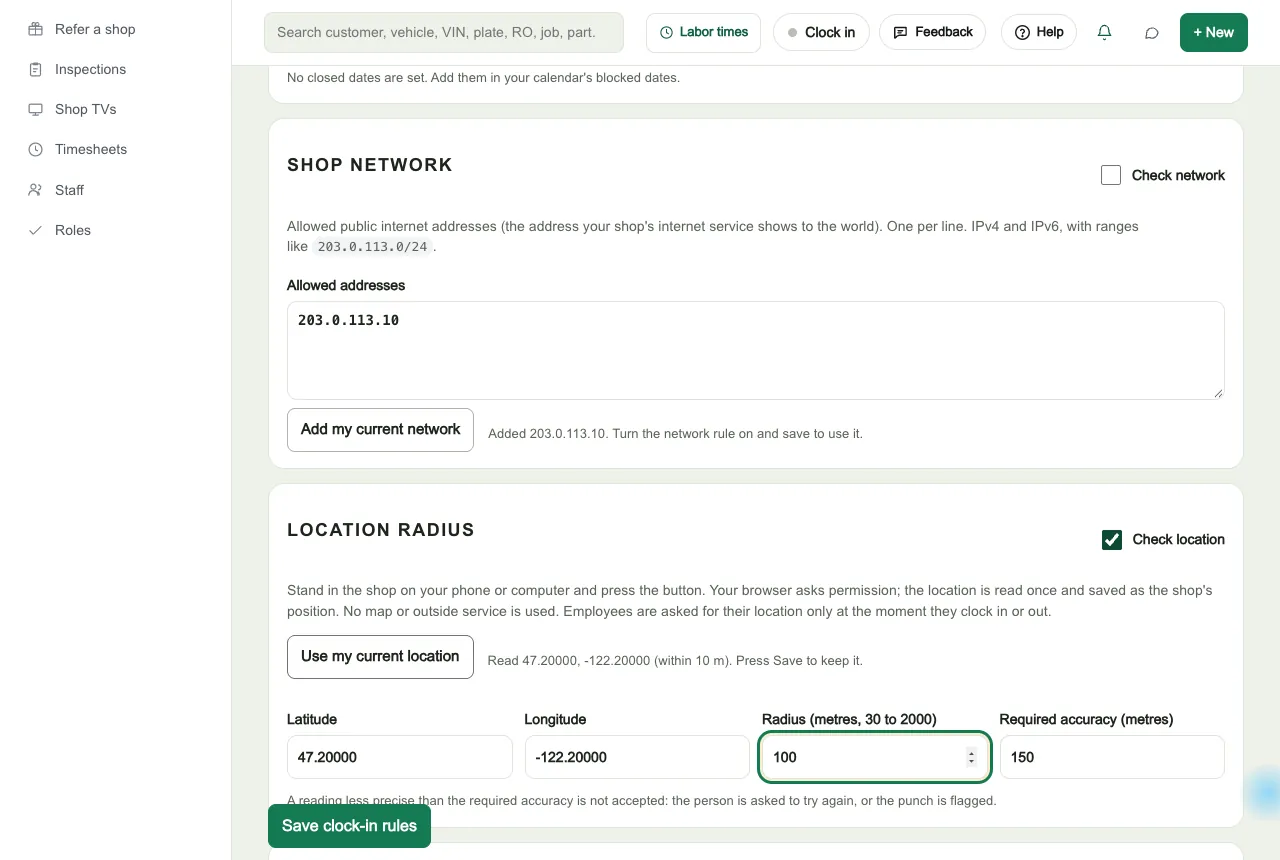
- 1While you are at the shop, press Add my current network.
- 2Tick Check network.
- 3Add more public addresses or ranges if you need them, one per line. IPv4 and IPv6 both work, up to 30 entries.
Set the location radius
- 1While you are at the shop, press Use my current location. Your browser asks permission once.
- 2Set the radius, from 30 to 2000 metres (100 by default).
- 3Set the required accuracy, from 20 to 500 metres (150 by default). A reading less precise than that is not accepted.
- 4Tick Check location.
Choose what happens outside the rules
Choose whether being on the shop network or inside the radius is enough, or whether both are needed. Then choose what happens to a punch outside your rules: flag it for approval (the default), or block it.
- Flag for approval
- The punch is saved with its real time and waits for a manager. It does not count towards pay until a manager approves it.
- Block
- The person is told why and no time is saved. The attempt is listed under Blocked attempts.
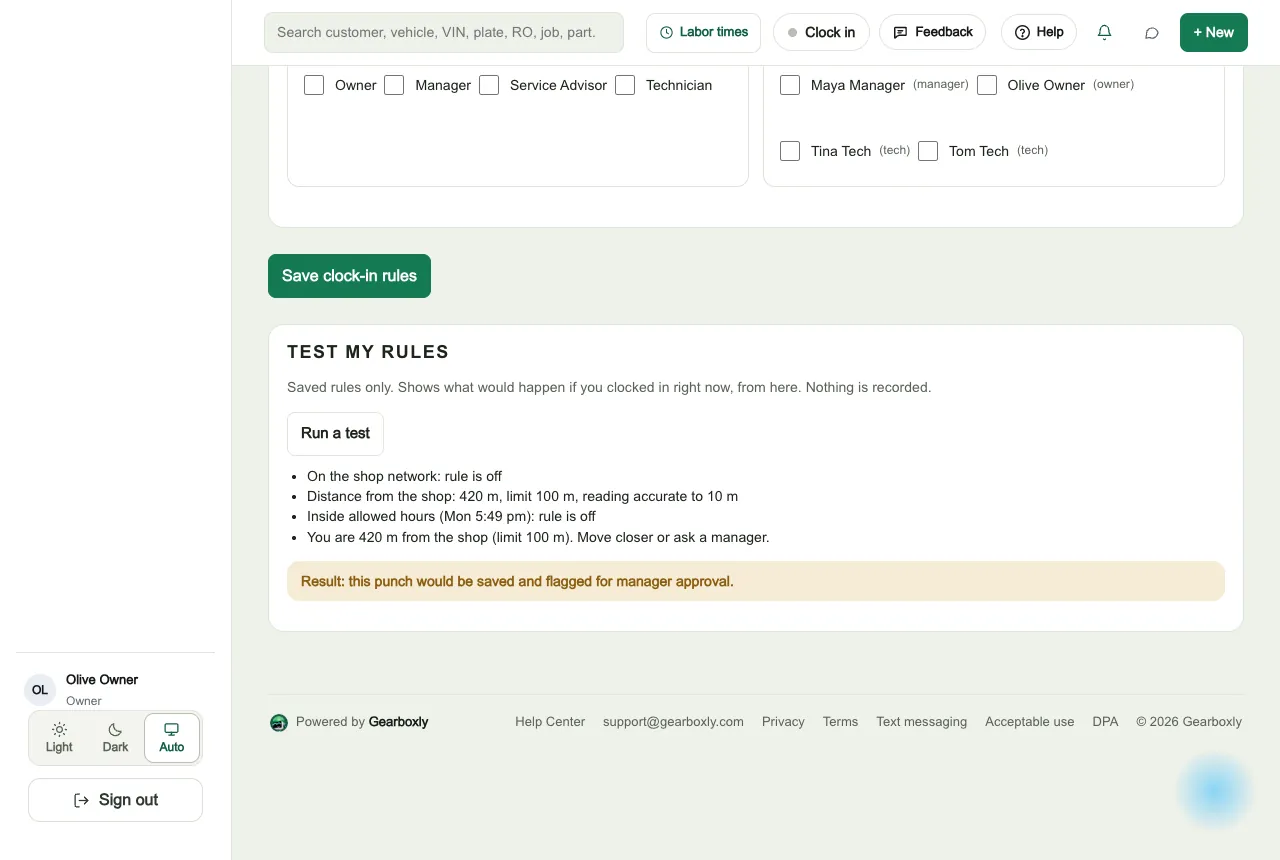
You can exempt roles or named people, and let managers punch from anywhere. Managers' allowed hours still apply.
Test, then save
- 1Press Save clock-in rules.
- 2Press Run a test to see what would happen if you clocked in right now, from where you are. Nothing is recorded.
Review flagged punches
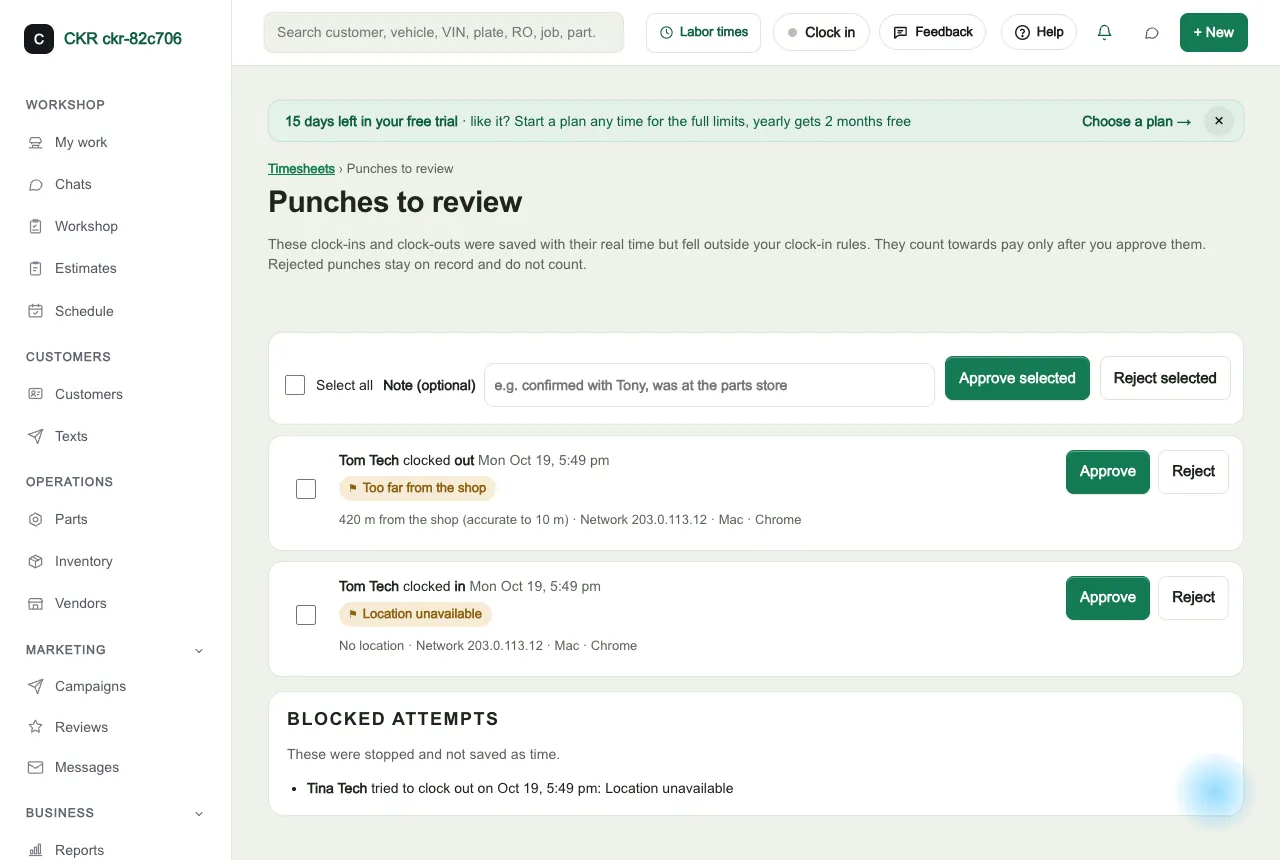
Open Timesheets, then Punches to review. Each flagged punch shows the reason, the distance and accuracy, the network address and the device. Press Approve or Reject, or select several and use Approve selected or Reject selected. You can add a note.