
Clock in and out
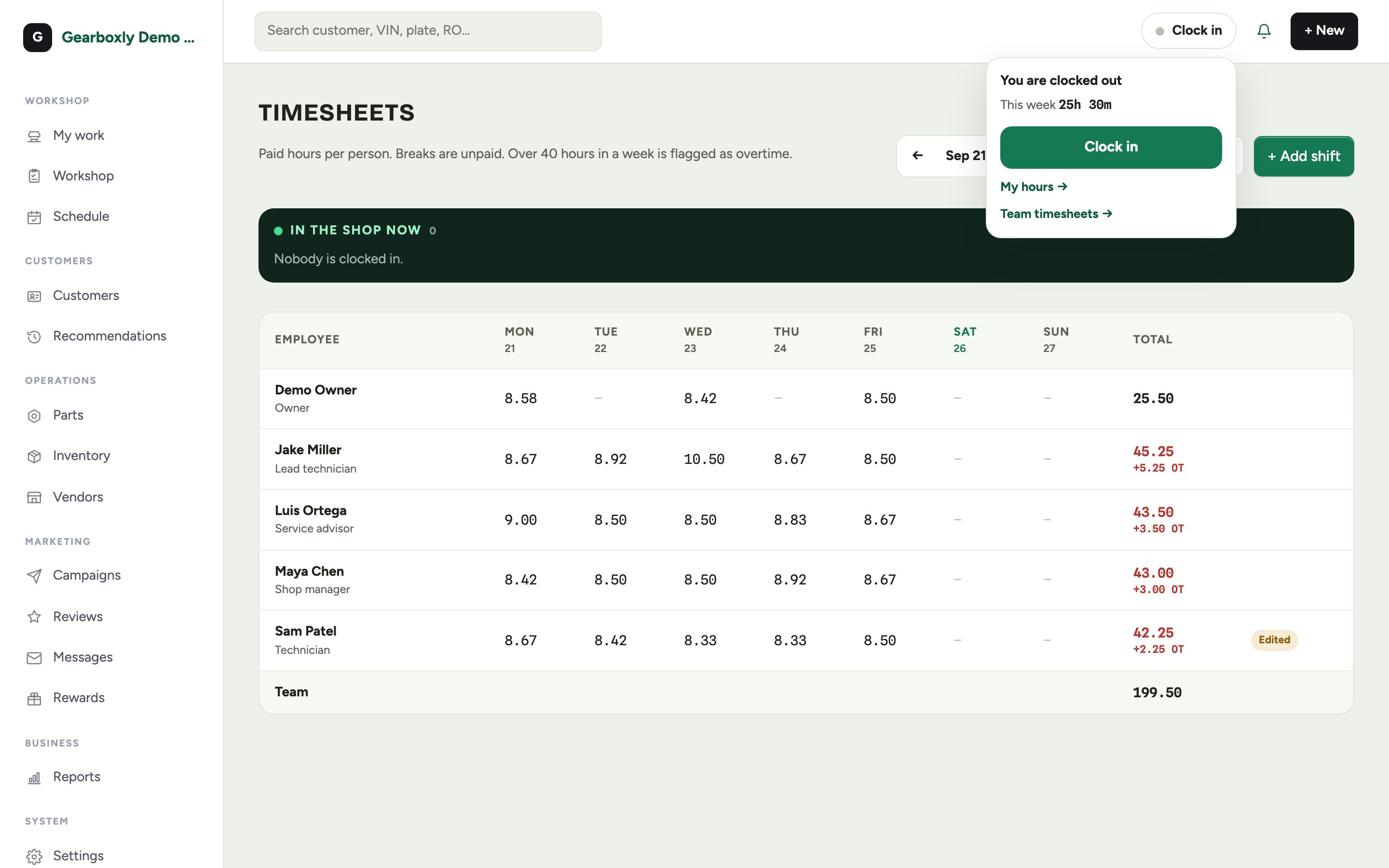
The clock sits in the top bar on every screen, for every role, including the technician workspace. Tap it to clock in. While you're on shift it turns dark green and counts your time.
- 1Tap Clock in at the start of your day.
- 2Tap the clock, then Start break for lunch. Breaks are unpaid, and the clock turns amber while you're on one.
- 3Tap End break when you're back.
- 4Tap Clock out at the end of the day. You'll see your paid time for the day, and any job clock you left running stops too.
My hours
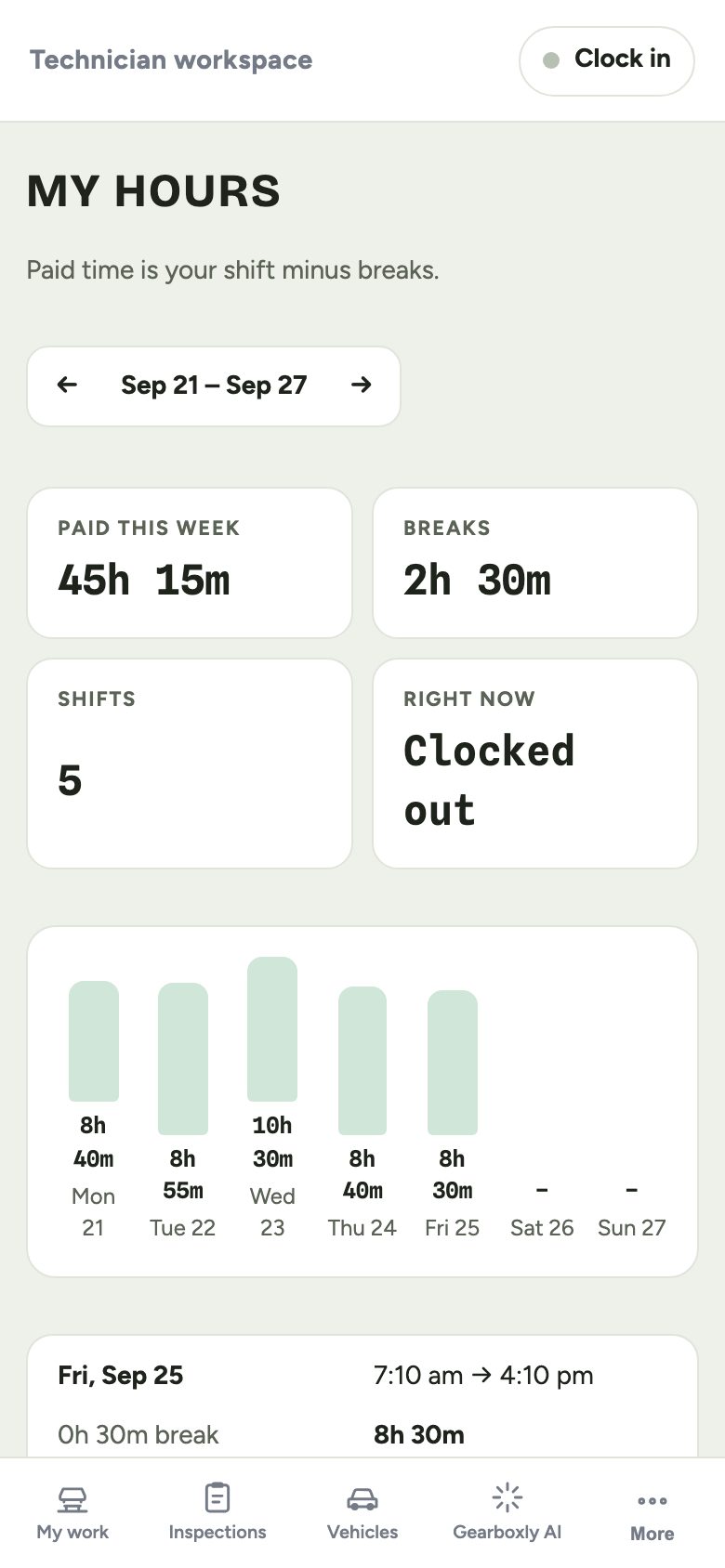
My hours shows your paid time for the week, your breaks, a bar for each day, and every shift with its times. If a manager corrected a shift, it says who did it.
Timesheets for managers
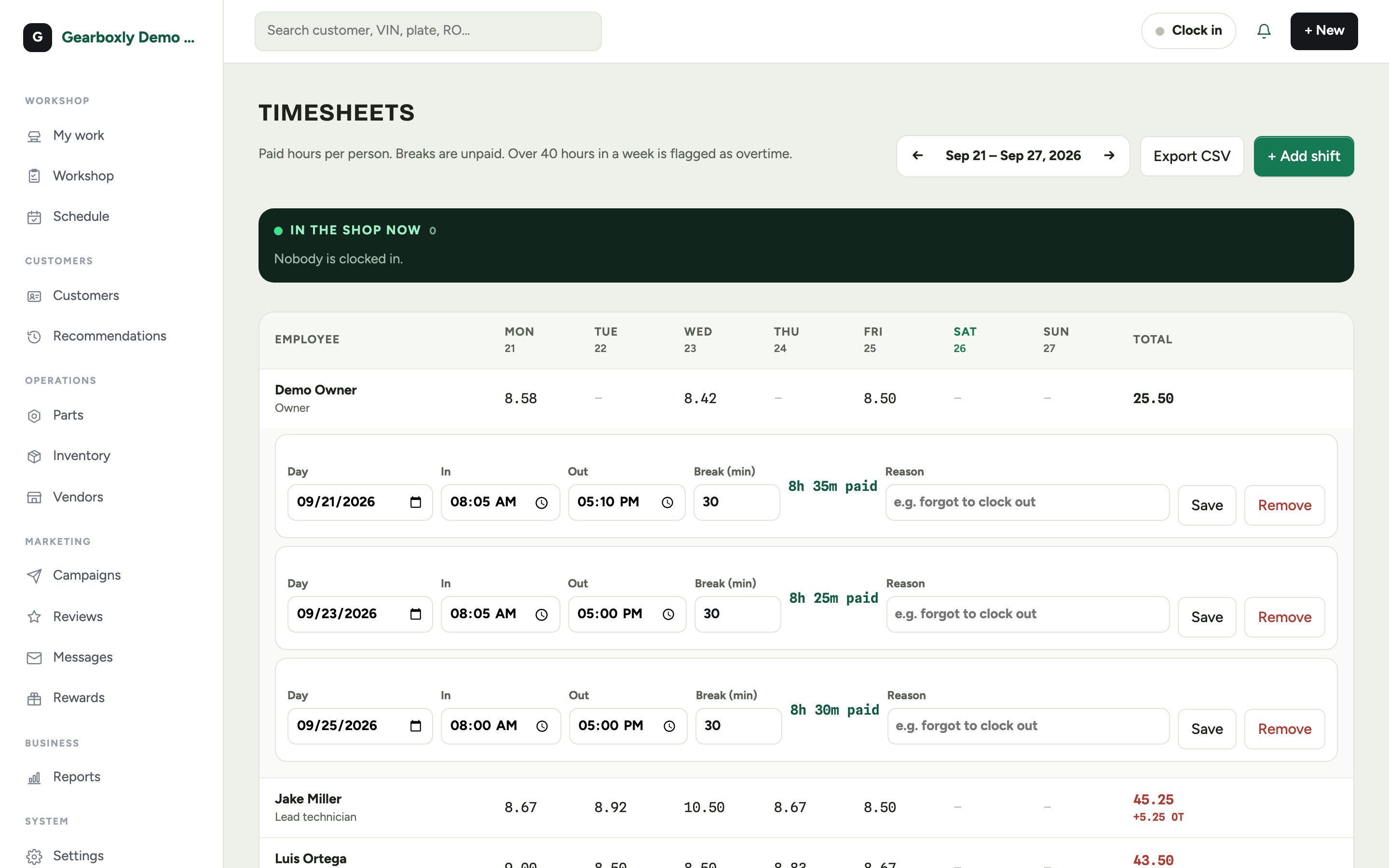
Owners and managers open System → Timesheets. Each person gets a row with paid hours per day and a weekly total. Anyone over 40 hours shows the overtime in red. At the top, In the shop now shows who's clocked in, live.
- Fix a shift
- Change the day, in and out times, or break minutes. A reason is required, and your name is saved with the change.
- Add a missed shift
- Use + Add shift when someone forgot to clock in.
- Flags
- On now, Check (a shift over 14 hours, usually a forgotten clock-out) and Edited.
- Export CSV
- Every shift plus weekly totals and overtime, ready for payroll.
Job time and shift time are kept separately. Job clocks show how long work took; shift time is what you pay. Comparing the two shows how productive the day was.