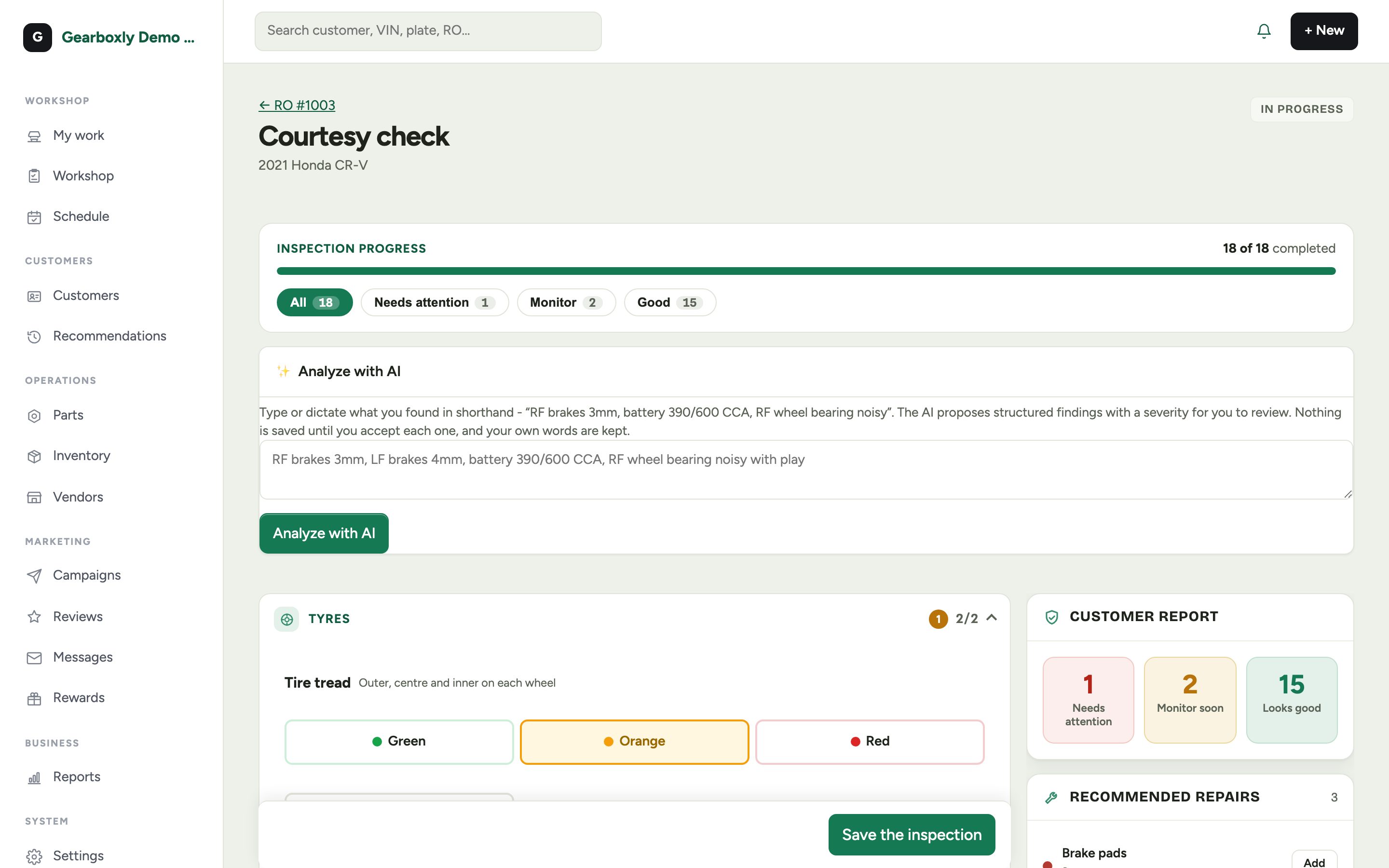
Start an inspection
Open the RO, go to the Inspection tab, pick a checklist and tap Start inspection. Technicians can also start one from their phone.
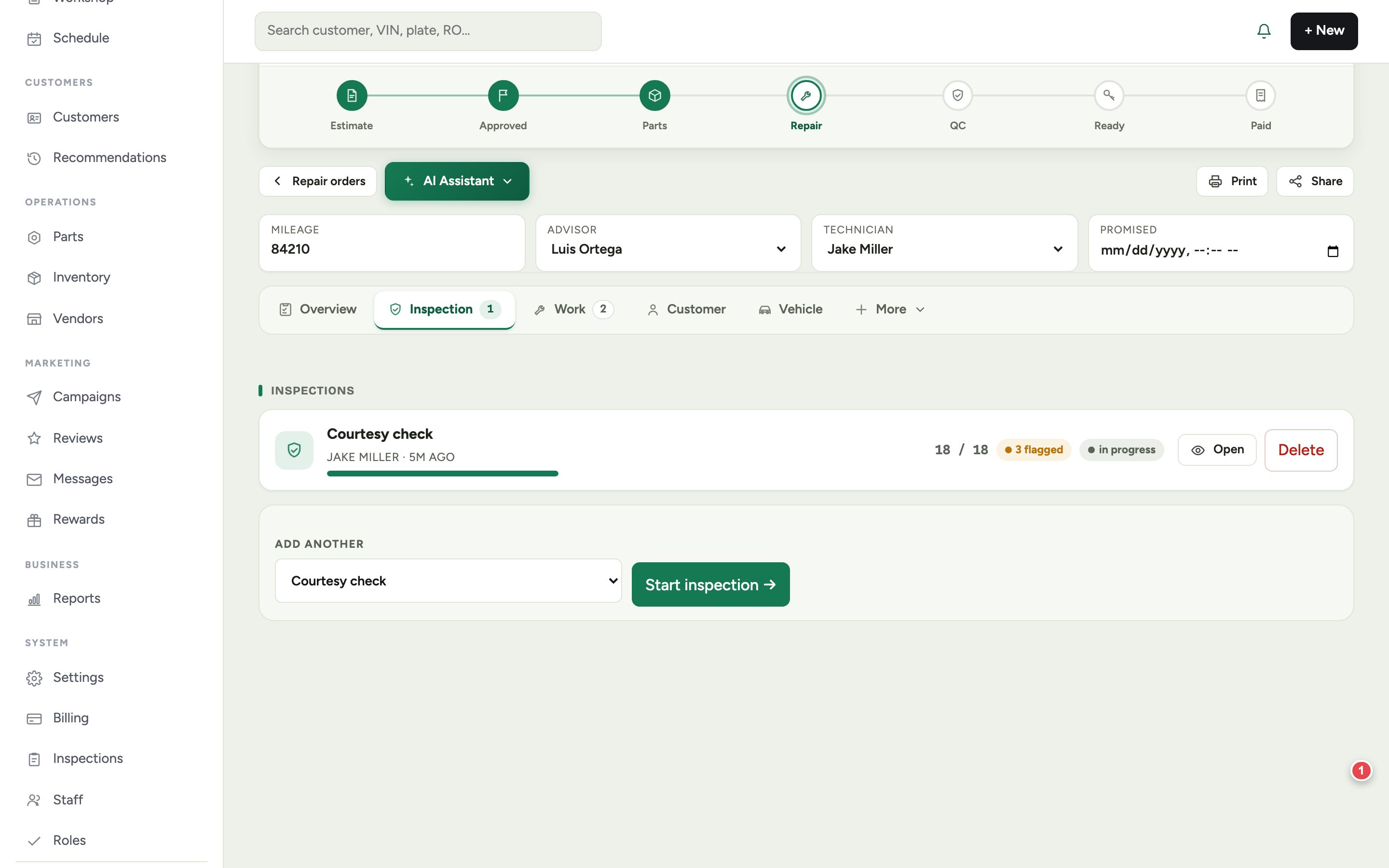
Mark each point
- 1For each point, tap Green, Orange or Red. Green means good, orange means watch it, red needs attention now.
- 2Add a measurement where it helps: pad thickness, tread depth.
- 3Tap + Photo to take a picture. Anything orange or red should have one.
- 4Tap Save & next to move on.
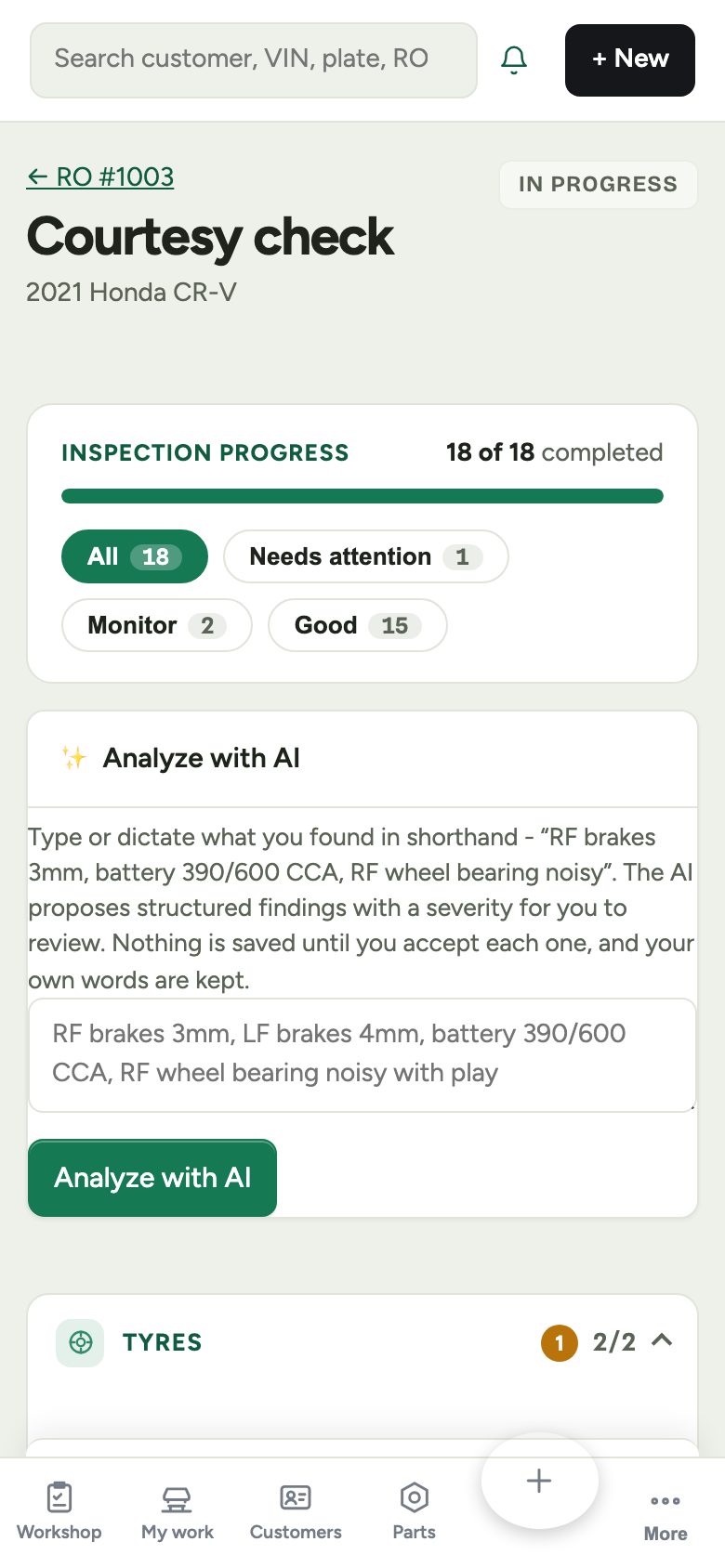
Let Gearboxly AI write it up
Technicians write in shorthand. Customers need plain English. Tap AI write-up on any point, then say or type what you saw, like "pads 2mm rotors scored". Gearboxly AI turns it into a clear finding. Nothing saves until you tap Use this.
Tap to talk only appears on phones and browsers that support voice. Typing works everywhere.
Send the report
The Customer report panel counts what needs attention, what to watch, and what looks good. Recommended repairs can be added to the estimate in one tap. Send the report and the customer gets a link with every photo and finding.