
My work
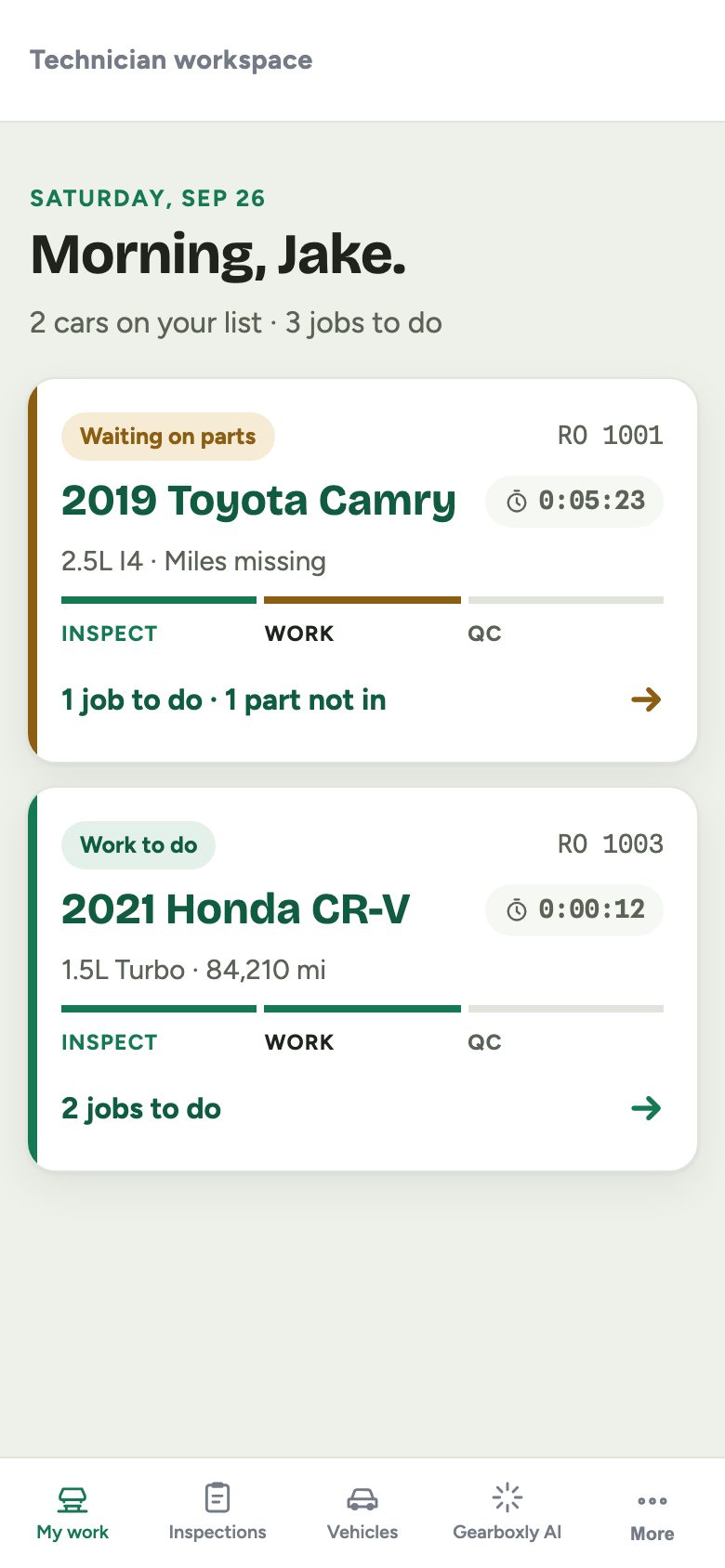
Technicians get their own workspace, built for a phone. My work lists only the cars assigned to them, each with where it is (Inspect → Work → QC), the customer's concern, and the next step. No prices, no customer phone numbers, no printing.
One car, top to bottom
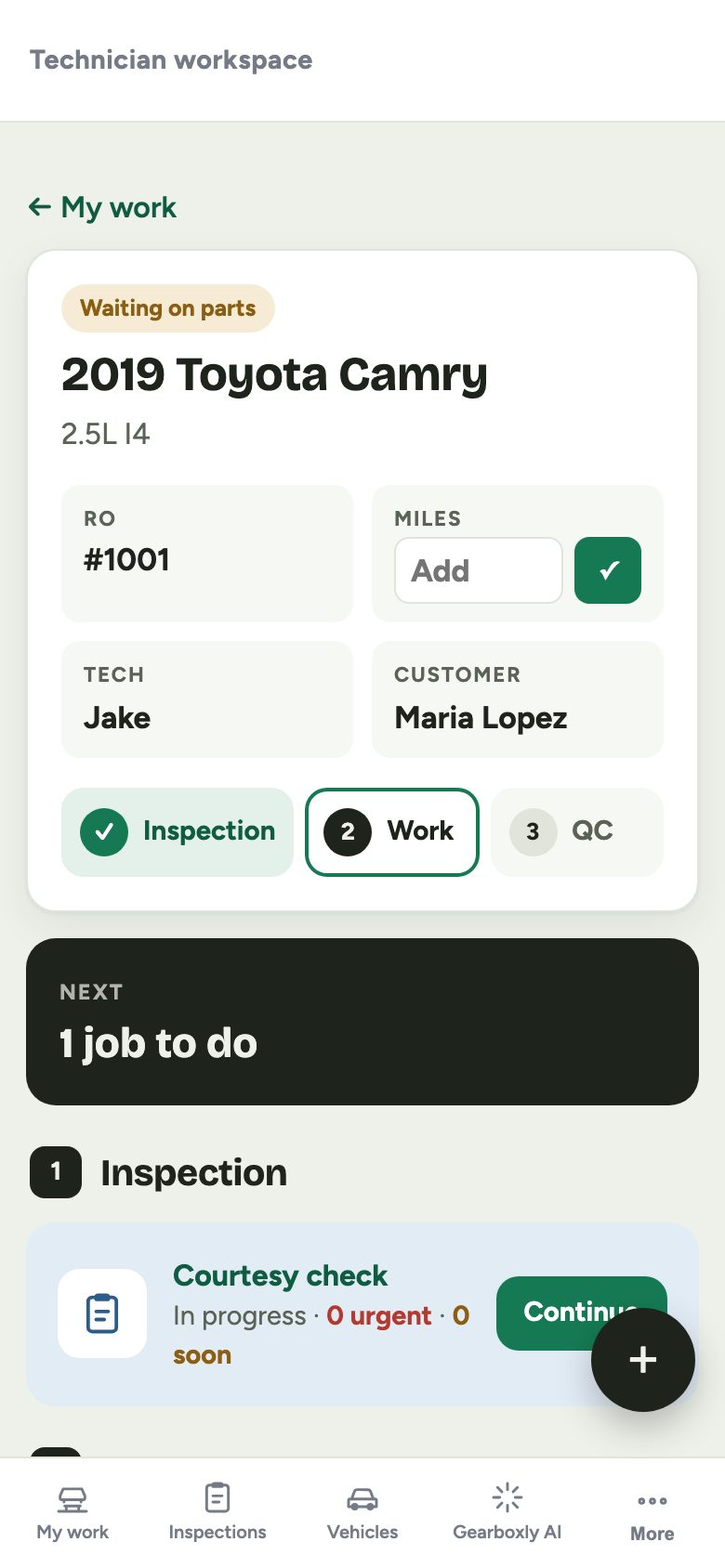
Tap a car to see everything about it: vehicle, RO, miles, the concern, the inspection, each job with what to do, the parts and whether they're in, and the car's past visits.
Start, pause, complete
- 1Tap Start on a job. The clock starts and the RO moves to In progress.
- 2Tap Pause for lunch or a parts wait. Time spent so far stays on the job and next to the car.
- 3Tap Complete when it's done. The clock stops and the advisor sees it.
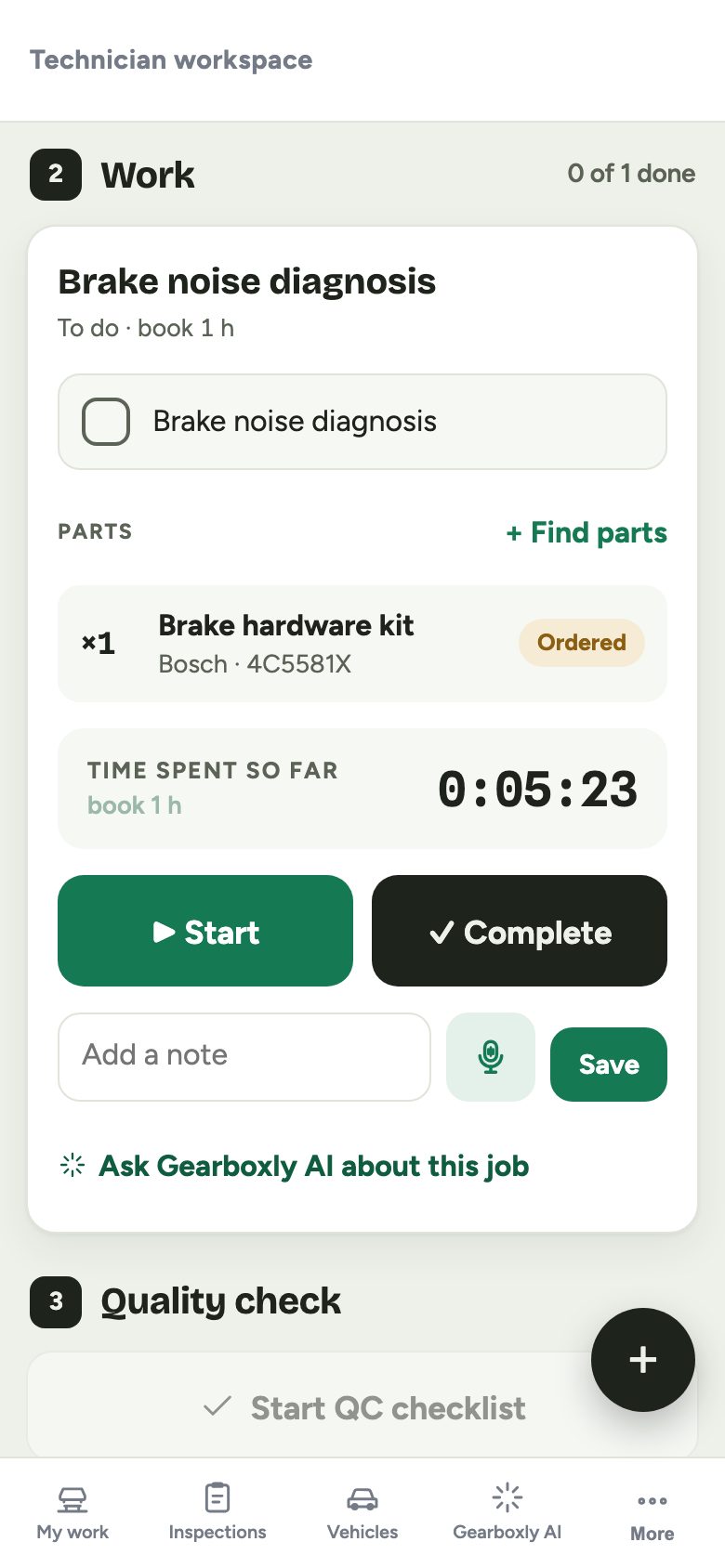
Advisors see the same clock live on the Workshop board and the RO, so nobody has to walk out to the bay to ask.
+ Need something
The round + button is always there. It sends a request to the service advisor in one tap, and it shows up in their notifications and at the top of the RO.
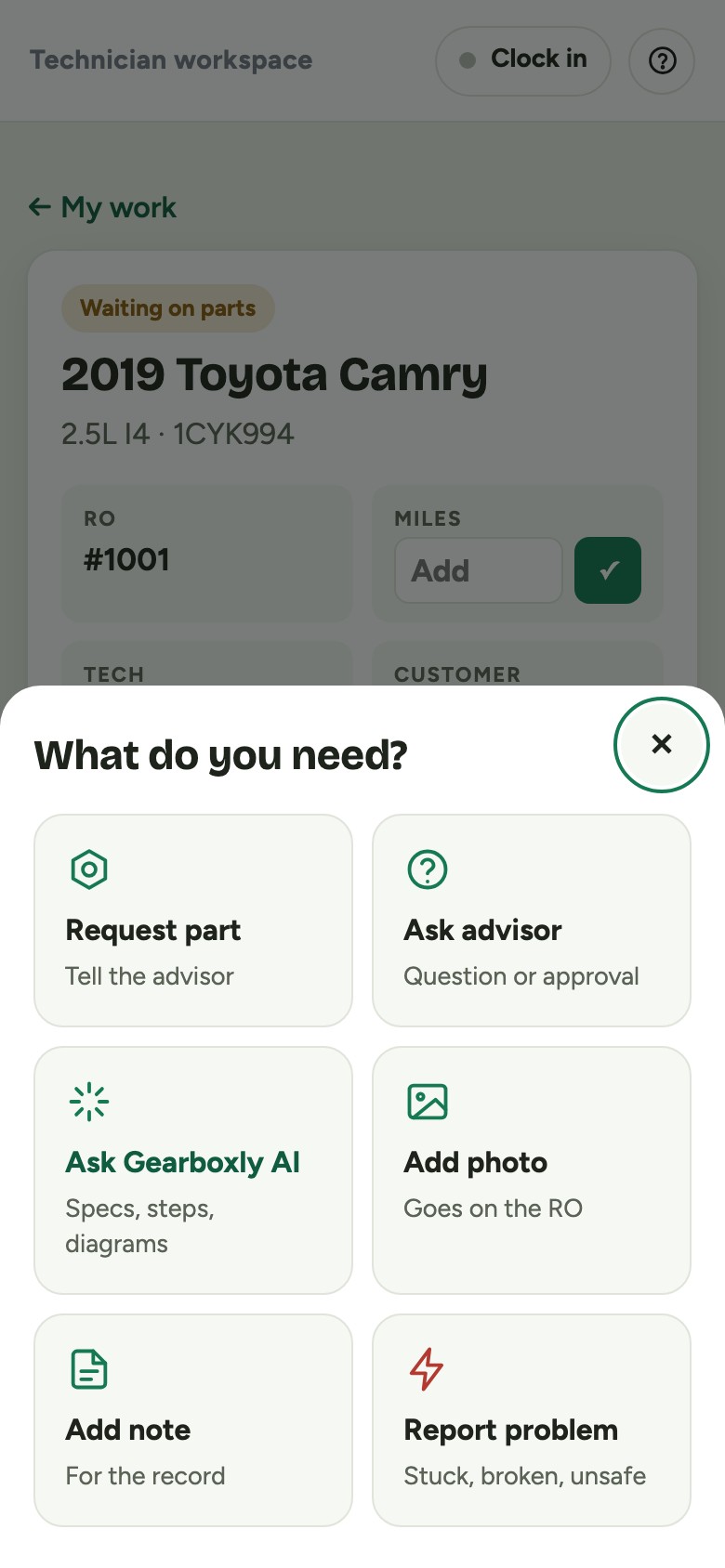
- Request part
- Tell the advisor what you need.
- Ask advisor
- A question or an approval you need.
- Add photo / Add note
- Goes straight on the RO.
- Report problem
- Seized bolt, broken part, safety issue. Mark it urgent if the car is stopped.
Quality check
When every job is complete, start the QC checklist, mark each item pass or fail, and sign off. A passed check marks the car Ready and tells the advisor.