What a household contact is
Husbands and wives share cars, and a family or a small fleet may have several people who drop off and pick up. Instead of making a second customer, add them as a household contact on the same account. Each contact has a name, a phone number, an optional email and a label like Spouse, Driver or Work. The cars, repair orders and invoices all stay on the one customer.
Add a contact
- 1Open the customer from Customers, then tap the Details tab.
- 2Under Phone numbers and household contacts, tap Add a number or contact.
- 3Type the contact's name. Email is optional.
- 4Type their phone number, and pick a label: Mobile, Home, Work, Spouse, Other, or type your own.
- 5Leave OK to text this number on if staff may text them, then tap Add.
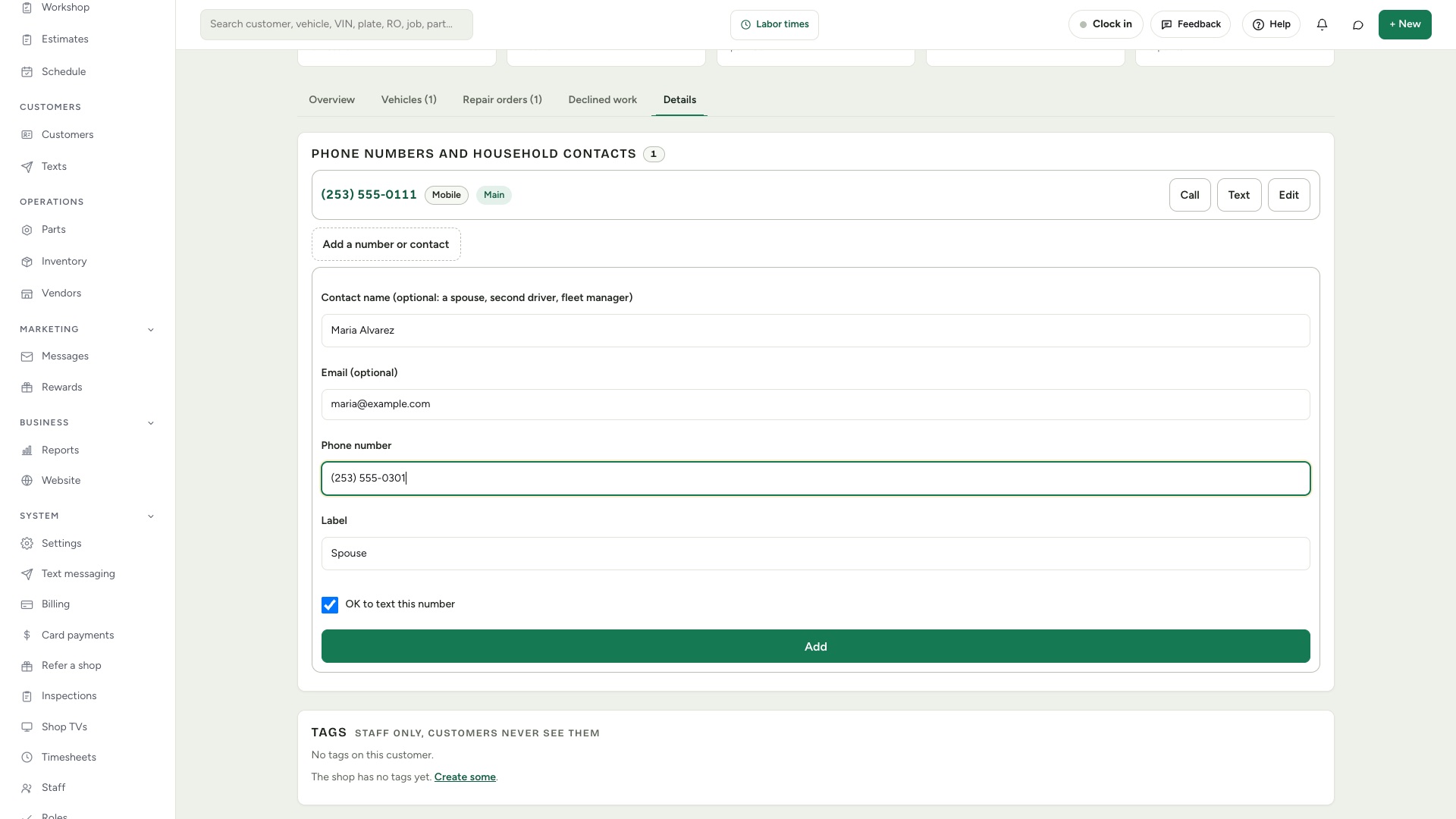
You can also open the same panel from a repair order: tap Edit next to the customer's name.
Where contacts show up
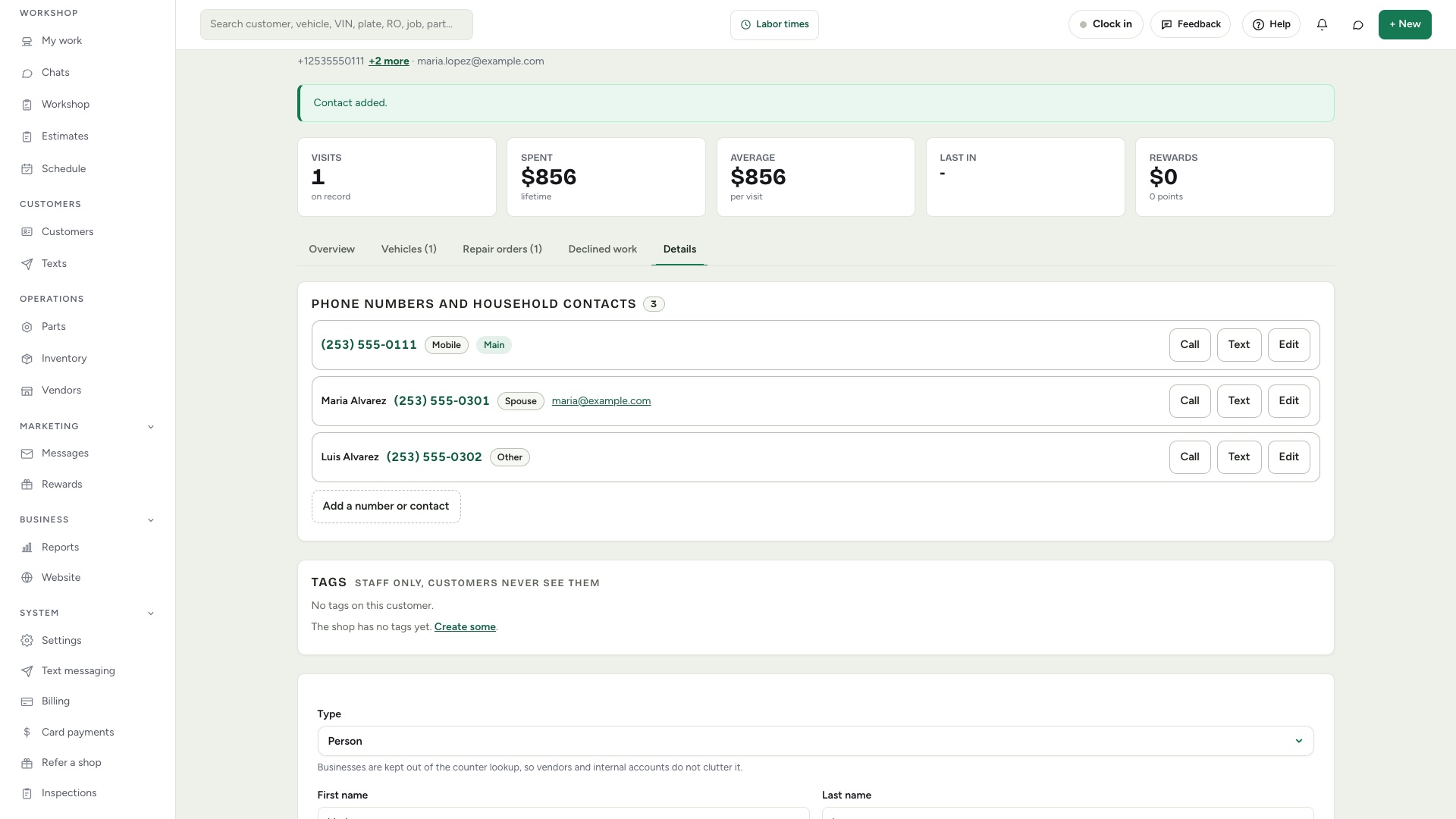
- The customer page
- Every contact is listed with Call and Text buttons. The main number is marked Main.
- The repair order
- The customer's other numbers sit behind the N more button by the name. A named contact shows as Name (Label), for example Maria Alvarez (Spouse).
- Search
- Search by a contact's name, email or number, from the search bar or the new repair order screen, and the whole account opens.
Texting a contact
On a repair order, open the Message tab and pick which number to text. The list shows each contact by name and label. When a contact texts back, their reply lands in the same conversation, marked with whose number it came from.
Texting is controlled per number. Turn OK to text this number off to stop staff texting one contact, and a number that replies STOP is never texted.
Change or remove a contact
- 1Tap Edit on the contact's row.
- 2Change the name, email, number, label or OK to text, then tap Save.
- 3To delete them, tap Remove.
The main number belongs to the customer, so a contact with a name cannot be made the main number. Clear the name first if you really want to switch.
Good to know
- Limits
- A customer can have up to 8 extra numbers or contacts besides the main number.
- Merging customers
- If you merge two customers, the contacts and their emails come along.
- Who can see them
- Only staff who can open customers see contacts and numbers. Technicians do not.
- Not yet
- A contact is not linked to specific cars, and they do not get their own customer portal sign-in. Everything still belongs to the main customer.