
Your week at a glance
Open Schedule in the sidebar. The week planner shows every booking by time. On the left: today's cars, requests from your website waiting to be confirmed, and a bar for how full each day already is.
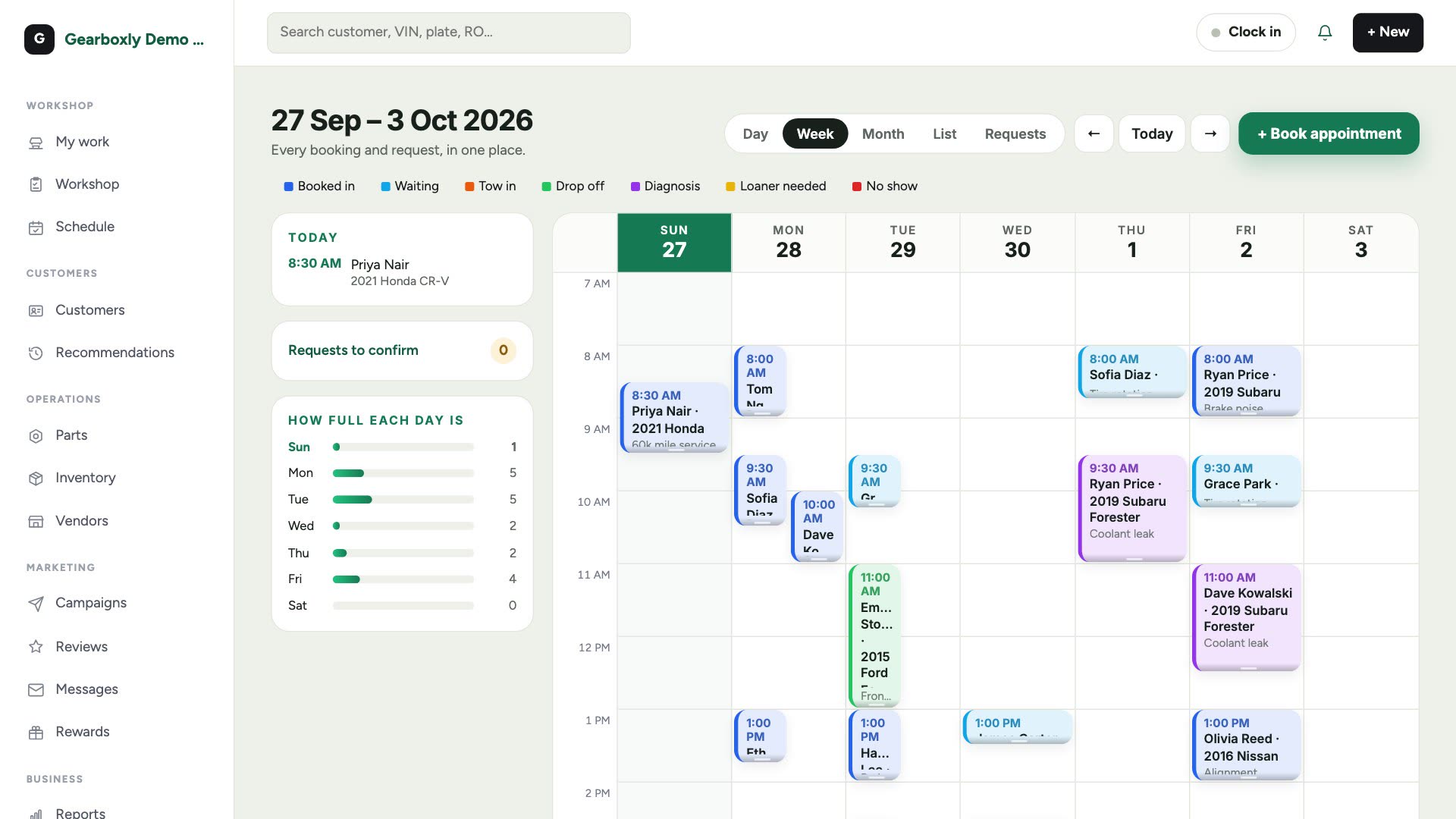
Book an appointment
- 1Tap + Book appointment at the top right.
- 2Choose An appointment and tap Continue.
- 3Pick the day and start time. Leave the end alone and it uses your default length.
- 4Start typing the customer's name. Pick them from the list, or type a new one.
- 5Add their phone, their car, and what it's for.
- 6Choose a colour so the bay can see the kind of job, then tap Add it.
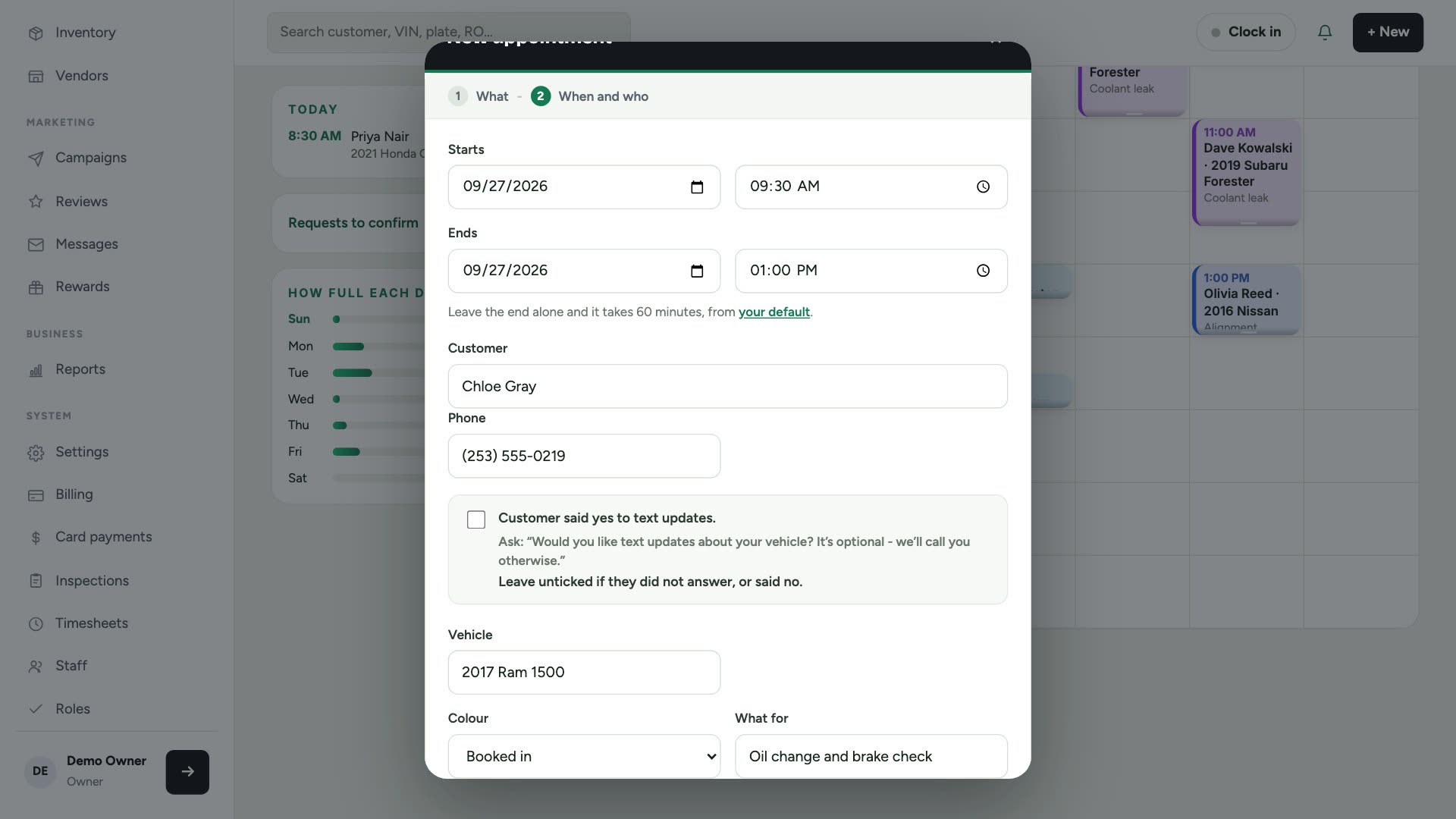
Only tick 'Customer said yes to text updates' if they actually agreed. Then a confirmation text goes out, and a reminder the day before.
Move or change it
- 1Drag an appointment to a new time or day.
- 2Drag its bottom edge to change how long it takes.
- 3Tap it to edit the details, change its status, or delete it.
Follow-ups and blocked time
- A follow-up
- Someone coming back for work they declined or deferred.
- Blocked time
- Not a repair: a delivery, training, or a bay out of action. It stops online booking offering that time.
Other views
Switch to Day for one day in detail, Month for the big picture, List for every appointment in order, or Requests for online bookings waiting on you.