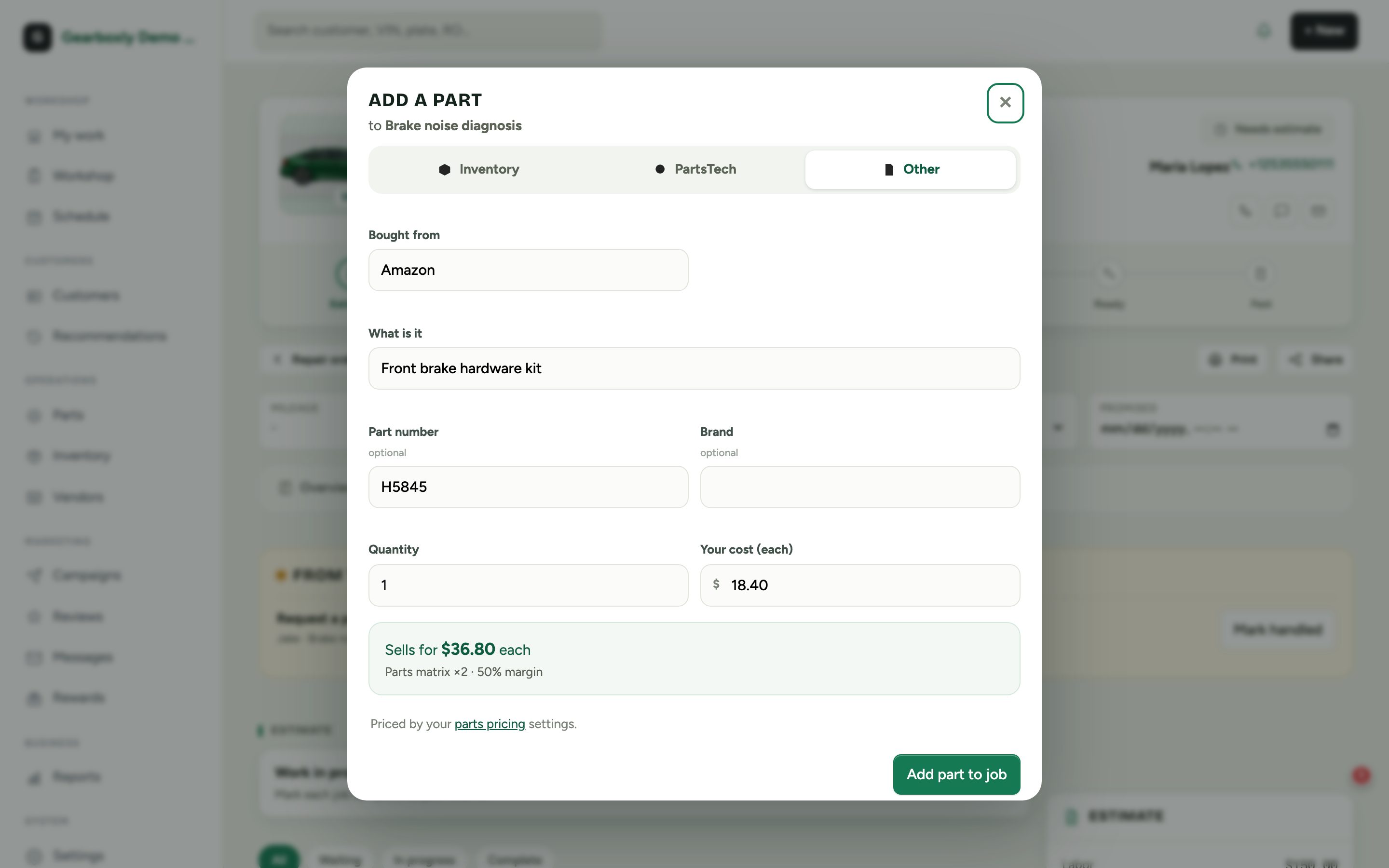
Three places a part can come from
- Inventory
- Parts on your shelf. Adding one takes it out of stock automatically.
- Suppliers
- Opens your supplier's site in a new tab (PartsTech opens already searching the part on this car's VIN). Order there, then add what you ordered to the repair order with Paste the order or by hand. Parts aren't added automatically yet; direct PartsTech ordering is coming soon.
- Other
- Anything else: Amazon, the dealer counter, a salvage yard. Type the supplier, what it is, and your cost.
Add a part bought elsewhere
- 1On the job, tap Add Parts, then choose Other.
- 2Type where you bought it and what it is. Part number and brand are optional.
- 3Enter your cost. Gearboxly shows the selling price from your parts matrix before you save.
- 4Tap Add part to job.
Gearboxly remembers the supplier you used last, so a second part from the same place is one step shorter.